
Want to create GIFs with ChatGPT? OpenAI’s new Images 2.6 update, launched on 4 November 2026, turns ChatGPT into a surprisingly capable GIF maker. You can now generate short animated GIFs from a text prompt, animate one of your own photos, or ask ChatGPT to edit an existing image into a looping animation — and the feature is available on every plan, including the free tier. Images are also around 50% faster to generate than before. In this guide, you will learn exactly how to make GIFs with ChatGPT, step by step, plus the tips that separate a smooth, shareable animation from a glitchy mess.
What Is ChatGPT Images 2.6?
ChatGPT Images 2.6 is the latest version of OpenAI’s image model inside ChatGPT. Earlier versions could already generate and edit still images, but 2.6 adds animation: it can output GIFs, keep a character or object consistent across edits, and follow longer, more detailed prompts more reliably. The headline change for most users is simple — GIFs are no longer locked behind the expensive plan. Free users, Plus subscribers, and Pro users all get access, which makes ChatGPT one of the easiest free GIF makers available in 2026.
That matters because GIFs are still one of the best-performing formats on social media, in blog posts, and in marketing emails. A short loop catches the eye in a feed far better than a static image, and until now making one usually meant learning a design tool or paying for a stock GIF service. ChatGPT collapses that whole workflow into a single chat message.
How to Create GIFs with ChatGPT: Step by Step
Follow these five steps to make your first animated GIF in under two minutes.
- Open ChatGPT and start a new chat. Use the web app or the mobile app — GIF generation works in both. Make sure you are signed in, even on the free plan.
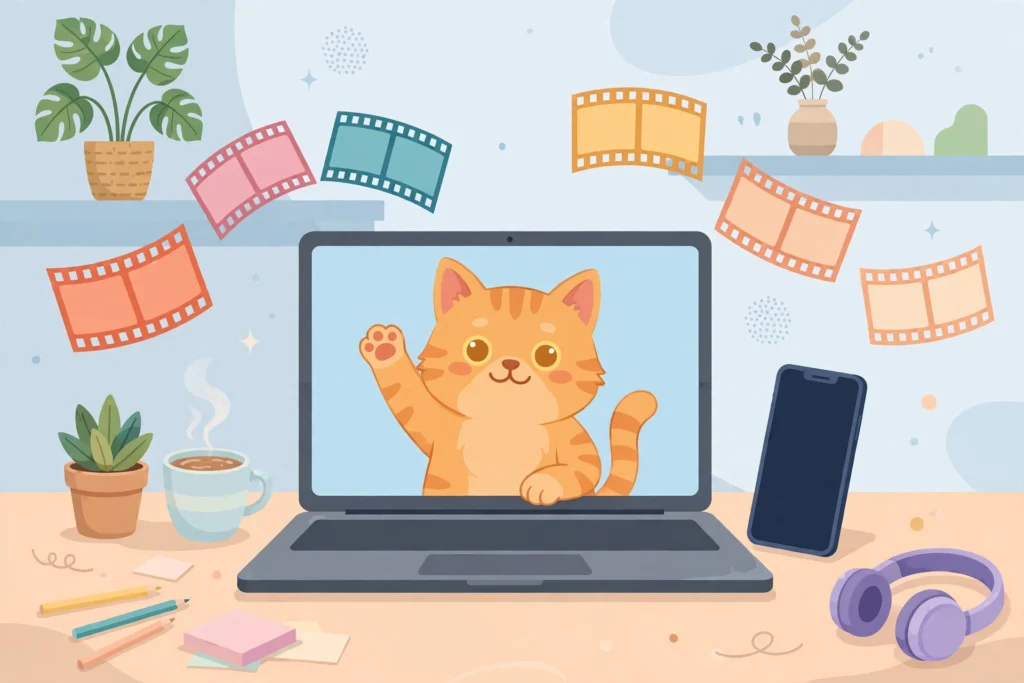
- Describe the GIF you want. Be specific about the subject, the action, and the style. For example: “Create a 3-second looping GIF of a cat waving its paw, flat illustration style, plain light background.” Mention “GIF” or “animated GIF” explicitly so ChatGPT returns an animation rather than a still image.
- Upload a photo to animate it (optional). Tap the attachment button, add your own image, and prompt ChatGPT to animate it — for instance, “Animate this photo so the dog tilts its head and wags its tail, keep the background unchanged.” This is the fastest way to turn product photos or portraits into moving content.
- Refine with follow-up prompts. If the first result is not right, keep chatting: “Make the movement slower,” “Add a sparkle effect,” or “Change the background to solid teal.” Images 2.6 holds the subject steady across edits far better than older versions, so small tweaks usually land cleanly.
- Download and share. Long-press or right-click the GIF to save it, then post it to your blog, social media, or email newsletter. Check the file size before uploading to WordPress — very long or detailed GIFs can be heavy, so keep loops short.
Tips for Better ChatGPT GIFs
A good prompt is the difference between a polished loop and a strange one. Keep these rules in mind:
- Keep the action simple. One clear movement — a wave, a blink, a bounce — loops far more cleanly than a complicated scene with several moving parts.
- Ask for a seamless loop. Add “seamless loop, first and last frame identical” to your prompt so the animation does not jump when it restarts.
- Fix the style in the prompt. Name the look you want — flat illustration, 3D render, watercolour, pixel art — so every frame stays consistent.
- Use a plain background. Busy backgrounds make AI animation glitch. A solid colour or simple gradient keeps the focus on the moving subject.
- Test at small size. Most GIFs are viewed on phones or in sidebars. If the movement reads clearly at thumbnail size, it will work everywhere.
5 GIF Ideas for Bloggers and Businesses
Not sure what to animate first? These five ideas work well for almost any blog or small business:
- Animated how-to steps. Turn a tricky step from a tutorial into a short looping demo — readers understand it instantly.
- Product highlights. Animate a product photo so a key feature moves: a lid opening, a light switching on, a page turning.
- Social media teasers. A looping GIF of your blog’s hero image makes a far better X or Facebook post than a static thumbnail.
- Email signatures and newsletters. A small branded animation in a newsletter footer adds personality without slowing the email down.
- Reaction GIFs for comments. A custom GIF in your own brand style beats a generic stock reaction every time.
Bloggers who already use AI in their workflow will find this fits neatly alongside other tools — see our guide to the best AI tools for beginners for a full starter stack, and our Gemini Canvas guide if you want to turn sketches into working apps with Google’s AI.
ChatGPT GIFs vs Other GIF Makers
Classic GIF tools such as GIPHY, Canva, and Ezgif still have their place — GIPHY has the biggest library of ready-made reactions, and Canva gives you precise control over text and timing. What ChatGPT adds is generation: you do not need a starting image, a template, or design skills. Describe the scene and it invents the animation for you. The trade-off is control — you cannot yet set an exact frame count or duration, and fine details like hands or text inside the GIF can still look off. For quick, original GIFs, ChatGPT wins on speed; for pixel-perfect branded assets, a dedicated editor still wins.
Frequently Asked Questions
Can I create GIFs with ChatGPT for free?
Yes. Images 2.6, including GIF generation, is available on every ChatGPT plan, including the free tier. Free accounts have usage limits, so heavy users may hit a daily cap.
How long can a ChatGPT GIF be?
ChatGPT GIFs are short loops, typically a few seconds. They are designed for quick animations, not long video clips — if you need a 15-second video, Google’s Gemini Omni 1.2 Flash is the better tool.
Can ChatGPT animate my own photos?
Yes. Upload any photo and ask ChatGPT to animate part of it, such as a smile, a wave, or flowing hair. Keep the requested movement small for the cleanest result.
Can I use ChatGPT GIFs on my blog or commercially?
Images you generate in ChatGPT are generally yours to use, but check OpenAI’s current terms for your plan before using them in paid advertising or client work.
Conclusion
Learning to create GIFs with ChatGPT takes minutes, costs nothing on the free plan, and gives any blogger or small business a fast way to make content move. Start with one simple loop — animate a photo, a logo, or a how-to step — and refine it with follow-up prompts until it looks right. Keep loops short, backgrounds plain, and actions simple, and your GIFs will look professional from the first try. Explore more AI guides in our blog or try the free utilities on our tools page to speed up your workflow.