
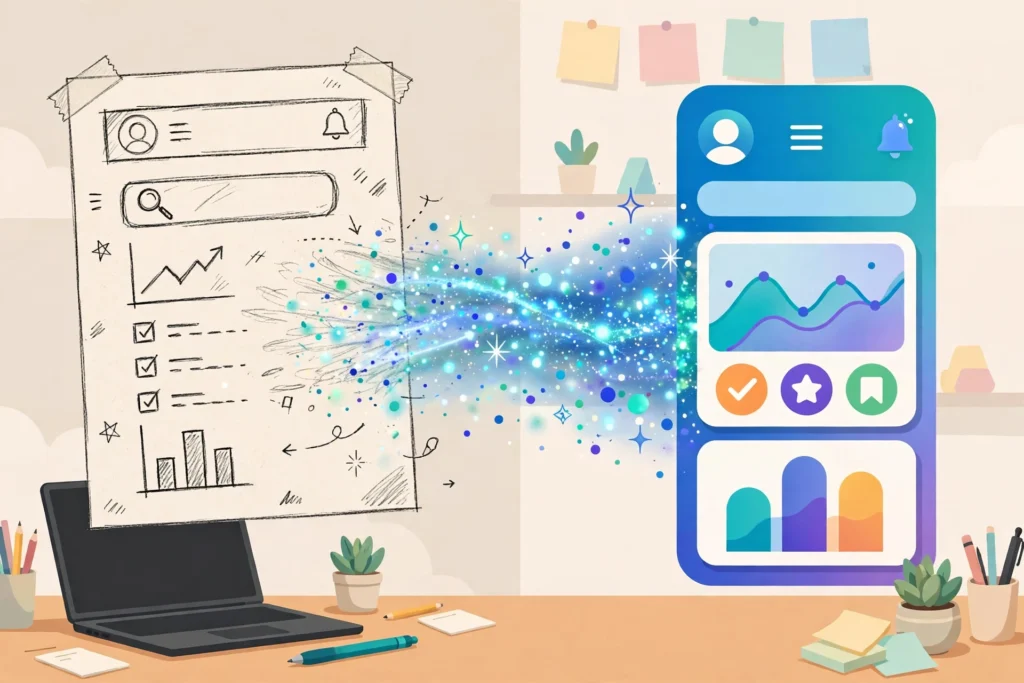
Google has quietly shipped one of the most useful AI features of the year: Gemini Canvas sketch to app. You draw a rough app idea on paper, upload a photo of it, and Gemini turns your sketch into working code you can edit right in your browser. No coding, no design software, no waiting for a developer. In this guide, you will learn exactly how Gemini Canvas sketch to app works, how to use it step by step, and how to get the best results from your first sketch.
What Is Gemini Canvas Sketch-to-App?
Gemini Canvas is Google’s interactive workspace inside Gemini, built for creating and editing documents, code, and apps. The new sketch-to-app feature adds a simple idea to it: instead of describing your app in words, you show it. Upload a photo of a hand-drawn wireframe — boxes for buttons, lines for text, arrows for navigation — and Gemini reads the layout and generates a working app from it.
The generated code opens in Canvas, where you can preview the app, ask Gemini to change colours, move elements, or add features, and keep iterating in plain language. It is the fastest path yet from an idea on paper to something you can actually click through.
How to Turn a Sketch Into an App With Gemini Canvas
Follow these steps to go from paper to a working prototype in minutes.
Step 1: Draw your app on paper
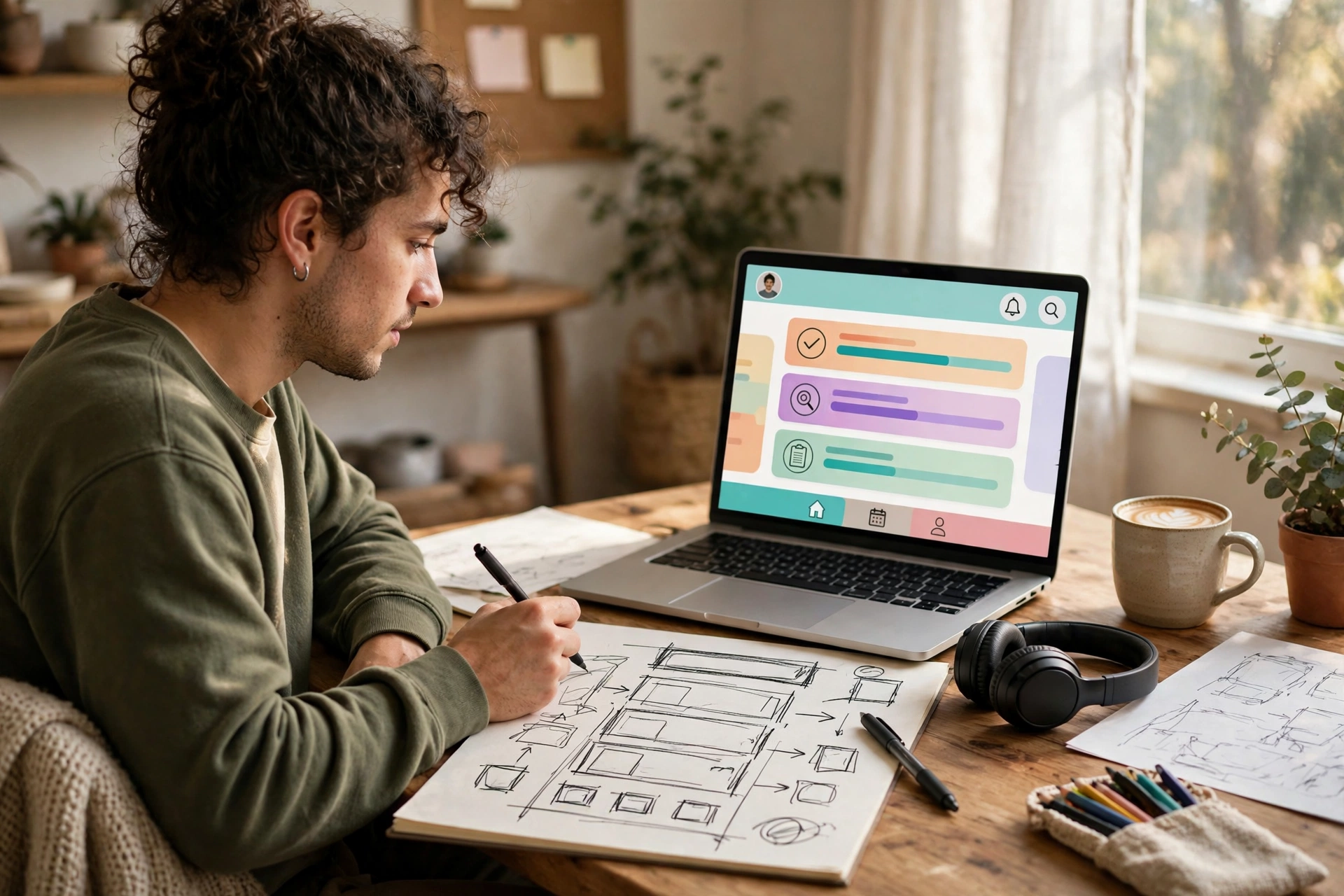
Sketch one screen at a time. Draw rectangles where buttons and cards should sit, lines where text goes, and label each part clearly — “Login button”, “Search bar”, “Product list”. Keep it tidy: clear labels help Gemini read your layout correctly.
Step 2: Take a clear photo
Photograph your sketch in good light, straight from above, with the whole page in frame. Avoid shadows and tilted angles. A clean photo is the single biggest factor in getting a good result.
Step 3: Upload it to Gemini Canvas
Open Gemini, start a new Canvas, and upload your sketch photo. Tell Gemini what you want in one sentence, for example: “Build this as a working to-do app with a modern design.”
Step 4: Preview and refine
Gemini generates the code and shows a live preview. Now iterate: ask it to change the colour scheme, add a dark mode, make the buttons bigger, or add a new screen. Every change happens in the same Canvas, so you can keep refining until the app feels right.
Step 5: Share or export your prototype
Once you are happy, share the Canvas link with your team or export the code to keep building on it. It works well as a prototype for client pitches, hackathons, and validating an idea before real development starts.
Tips to Get the Best Results
- Label everything: write the name of each element on the sketch instead of leaving blank boxes.
- One screen per sketch: multi-screen apps work better when each screen is its own drawing.
- Describe the style: add words like “minimal”, “playful”, or “professional” to your prompt so Gemini picks a matching design.
- Iterate in small steps: ask for one change at a time instead of five at once — the results stay cleaner.
- Test the preview: click every button in the preview. If something does nothing, tell Gemini to wire it up.
What Sketch-to-App Can’t Do Yet
Sketch-to-app builds front-end prototypes, not production apps. It will not connect a real database, handle user logins, or process payments on its own, and complex logic may need manual fixes. Think of it as a fast way to see and test an idea — the real build still needs a developer for anything serious. If you are new to AI tools, start with our guide to the best AI tools for beginners before going deeper.
Why This Matters for Non-Developers
For years, turning an app idea into something visible meant hiring a designer or learning to code. Sketch-to-app removes that first barrier. Founders can pitch with a clickable demo, teachers can build classroom tools in an afternoon, and small businesses can prototype a booking or ordering screen without a budget. It also pairs well with good prompting — see our guide on how to write better AI prompts to get sharper results from every AI tool you use.
Conclusion
Gemini Canvas sketch to app turns a pen-and-paper idea into a working prototype in minutes. Draw one clear screen, photograph it well, upload it to Canvas, and refine the result with plain-language prompts. It will not replace developers, but it will replace the blank page — and for anyone with an app idea, that is a big step forward. Explore more AI tools and guides on the KamiWeb tools page.
FAQs
Is Gemini Canvas sketch-to-app free?
Gemini Canvas is available in the free Gemini experience, though some advanced features may require a paid plan depending on your region.
Do I need to know how to code to use it?
No. You describe what you want in plain language and Gemini writes the code. Basic coding knowledge helps only if you want to edit the code yourself.
Can I use a digital drawing instead of paper?
Yes. Any clear image of a wireframe works — a tablet sketch, a whiteboard photo, or a screenshot of a mockup.
What kind of apps work best?
Simple single-purpose apps work best: to-do lists, calculators, landing pages, booking screens, and dashboards. Complex apps with real backends need further development.