
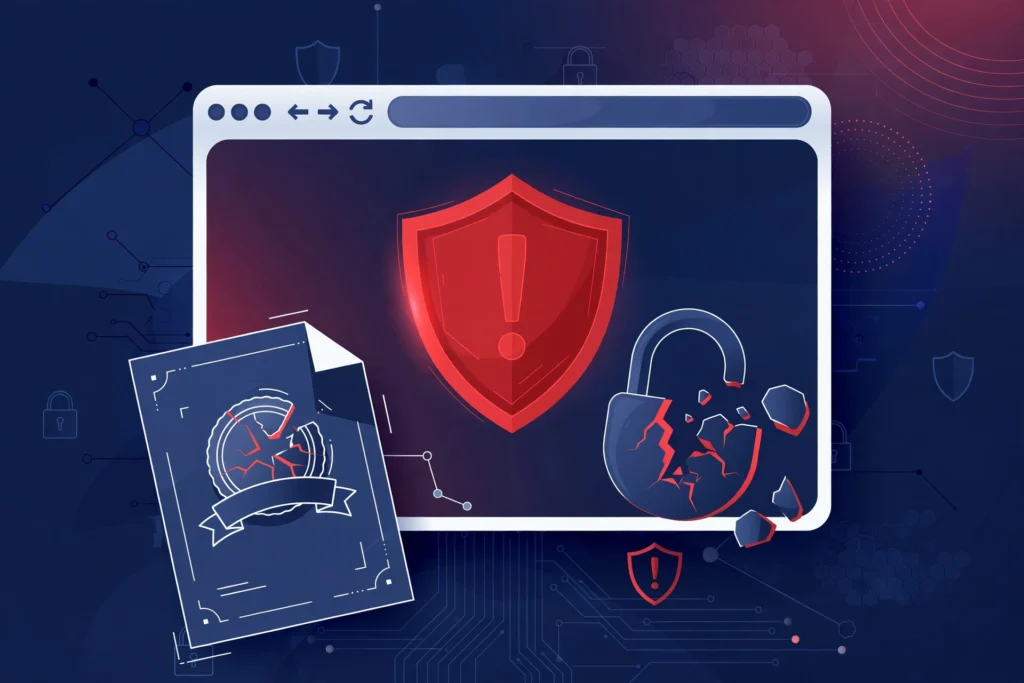
Chrome shows a stark red warning: “Your connection is not private” — with an error code like NET::ERR_CERT_DATE_INVALID or NET::ERR_CERT_AUTHORITY_INVALID underneath. It means the browser could not verify the site’s SSL certificate — its digital ID card — so it stopped you to protect your passwords and payment details. Sometimes the fault is yours (wrong clock, antivirus interference); sometimes it is the site’s (expired certificate). This 2026 guide’s “your connection is not private” fix covers both sides with eight solutions.
What Causes the “Your Connection Is Not Private” Error?
A certificate tells your browser “this site is really who it says it is”. If that ID card is expired, fake, mismatched, or unreadable, the browser blocks you. The common causes split into visitor-side and site-side:
- Expired SSL certificate (site-side): The number-one cause when it is your own website — the certificate lapsed because auto-renew was off or a payment failed.
- Untrusted/self-signed certificate (site-side): The server presents a self-signed, placeholder, or private-CA certificate instead of one from a publicly trusted authority — or the intermediate chain is incomplete.
- Certificate name mismatch (site-side): The certificate was issued for a different hostname (e.g. www vs non-www not covered) —
NET::ERR_CERT_COMMON_NAME_INVALID. - Wrong device date/time (visitor-side): A wrong clock makes valid certificates look expired or not-yet-valid — the single most common visitor-side cause.
- Public Wi-Fi captive portal (visitor-side): The network’s sign-in portal intercepts HTTPS with its own certificate until you log in.
- Antivirus HTTPS scanning (visitor-side): Security software that inspects encrypted traffic replaces the site’s certificate with its own.
- VPN, proxy, or corporate filter (visitor-side): Anything re-signing HTTPS traffic triggers the warning.
- Outdated device/OS (visitor-side): Old phones and operating systems have outdated trusted-root lists that no longer recognize current certificates.
How to Fix “Your Connection Is Not Private”
First, scope it: if the warning appears on every HTTPS site, the problem is your device/network. If it is one site on every device, the problem is that site’s certificate. Visitor fixes first:
- Fix your clock. Turn on Set time automatically and Set time zone automatically (Windows/macOS/mobile). A wrong date is the fastest fix of all — reload the page afterward.
- Complete the Wi-Fi sign-in. On public Wi-Fi, open an
http://address (or tap Chrome’s “Connect to network” prompt) and sign in to the portal. The portal stops intercepting HTTPS once you authenticate. - Test in incognito and update everything. Open the page in an incognito window — if it loads, an extension is interfering; disable extensions one by one. Also update Chrome and install pending OS updates, which refresh trusted root certificates. More browser fixes are on the KamiWeb blog.
- Check antivirus HTTPS scanning. Temporarily disable your antivirus’s “HTTPS scanning / web protection” feature and reload. If the warning clears, update the security software or add an exception per the vendor’s guidance — the scanner was re-signing certificates.
- Disconnect VPN/proxy temporarily. Test with them off. On a work or school computer, do not change anything — ask IT, since corporate proxies (Zscaler, Fortinet, etc.) intentionally re-sign traffic.
- Clear SSL state and cache. In Chrome settings, clear browsing data (cookies + cached images/files). On Windows you can also clear the SSL state via Internet Options → Content → Clear SSL state.
Site-owner fixes (if visitors see this on your website):
- Install/renew a valid certificate with the full chain. In your hosting panel, renew the certificate (enable auto-renew so it never lapses — Let’s Encrypt via AutoSSL is free on most hosts) and make sure the full chain including intermediates is installed, covering both www and non-www. Verify with an SSL checker afterward. A valid certificate also needs a solid site behind it — browse the KamiWeb themes library and our free WordPress plugins.
- Do not bypass it on sites you do not trust. Chrome’s Advanced → “Proceed” is for one case only: your own router/server admin page on your own network. On any public site showing this warning, never enter logins or payment details until the warning is gone. Keep everyday utilities handy via the KamiWeb free tools.
Conclusion
“Your connection is not private” is the browser doing its job: check your clock, finish the Wi-Fi sign-in, rule out antivirus/VPN interference — and if it is your own site, renew the certificate with auto-renew on and the full chain installed. Never bypass the warning on sites you do not own and trust. For more free resources, start at the KamiWeb homepage.