
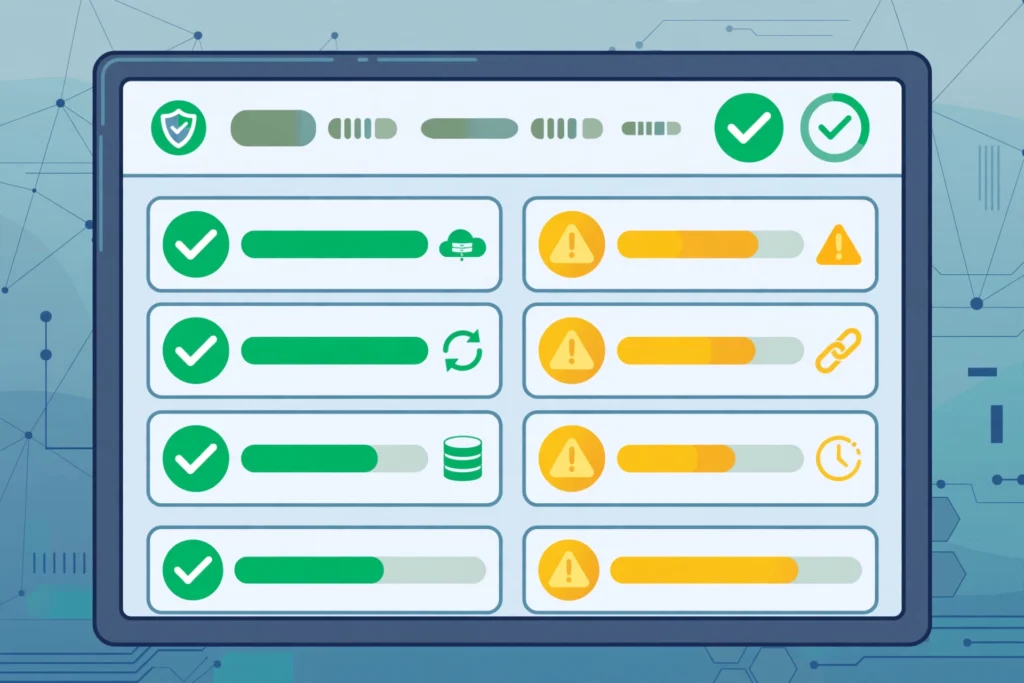
WordPress shows the warning “WordPress could not establish a secure connection to WordPress.org” — usually in Site Health, or when updates, plugin installs, and theme downloads mysteriously fail. This WordPress secure connection fix guide explains what is happening: your server cannot complete an outbound HTTPS connection to api.wordpress.org. Your site loads fine for visitors; it is the server’s own ability to phone home that is broken. Updated for 2026.
The distinction matters because most “secure connection” guides target visitors’ browsers. This error is server-side: WordPress uses PHP/cURL to reach out for updates, and that outbound TLS handshake is failing. The causes live in your hosting environment — outdated curl/OpenSSL, missing CA bundles, blocked outbound ports, broken DNS, or a wrong server clock — and each has a specific fix below.
What Causes the WordPress.org Secure Connection Error
- Outdated curl/OpenSSL/PHP: the server’s TLS stack cannot negotiate modern TLS 1.2/1.3 with WordPress.org.
- Missing or stale CA bundle: PHP cannot verify WordPress.org’s certificate (the server-side twin of cURL error 60).
- Outbound port 443 blocked: firewall or host blocking outbound HTTPS.
- DNS failure on the server: the server cannot resolve
api.wordpress.org. - Wrong server time: clock skew breaking certificate validation.
- Security plugins or host filters: overzealous rules blocking outbound requests.
How to Fix “Could Not Establish a Secure Connection to WordPress.org”: 7 Steps
Step 1: Confirm the failure precisely
Go to Tools → Site Health and read the exact recommendation — it often names the failing check. Then test from the server itself via SSH: curl -v https://api.wordpress.org. If that fails, the problem is confirmed at the server level, independent of WordPress.
Step 2: Update PHP, curl, and OpenSSL
In cPanel, switch to a supported PHP version (8.1+); on VPS, run sudo apt update && sudo apt upgrade php curl openssl ca-certificates and restart the web server. Outdated stacks are the top cause — WordPress.org requires modern TLS, and old bundles simply cannot handshake. This resolves the majority of cases.
Step 3: Fix the CA bundle
Ensure PHP has a valid CA bundle: set curl.cainfo and openssl.cafile in php.ini to a current cacert.pem (download from https://curl.se/ca/cacert.pem). WordPress also ships its own bundle at wp-includes/certificates/ca-bundle.crt — if it is outdated, replace it with a fresh copy. See our cURL error 60 guide for the full walkthrough.

Step 4: Allow outbound HTTPS and fix DNS
Confirm your firewall allows outbound traffic on port 443 — some hosts block it by default. Then check the server resolves the API host: nslookup api.wordpress.org. If DNS fails, fix /etc/resolv.conf or, as a targeted workaround, add the correct IP mapping to /etc/hosts (look up the current IP first; hard-coding IPs is a temporary measure since they can change).
Step 5: Correct the server clock
Run date on the server — if it is wrong, certificate validation fails. Enable NTP time sync (sudo timedatectl set-ntp true on systemd systems). Even a few minutes of skew can break handshakes.
Step 6: Check security plugins and ask your host
Temporarily disable security plugins to rule out outbound-request blocking, then re-enable. If nothing above helps, contact your hosting provider with the exact error and the output of curl -v https://api.wordpress.org — on shared hosting, the TLS stack and firewall are their responsibility, and they may need to move you to a newer server node.
Step 7: Verify updates work again
Go to Dashboard → Updates and click Check Again — the secure-connection warning should be gone from Site Health. Try installing a small plugin to confirm downloads work end-to-end. For related server TLS issues, see our cURL error 35 guide.
How to Prevent WordPress.org Connection Errors
Keep PHP on a supported version with automatic minor updates, and choose hosts that maintain current TLS stacks — this error is overwhelmingly a “neglected server” problem. Monitor Site Health weekly; it surfaces TLS and outbound-connection issues before they block a critical update. Never work around it by disabling SSL verification in wp-config.php — that trades a fixable server issue for a permanent security hole. A quick TLS check with a free SSL diagnostic tool confirms your server can still handshake with the outside world.
Conclusion
“Could not establish a secure connection to WordPress.org” means your server’s outbound TLS is broken — update PHP/curl/OpenSSL, fix the CA bundle, open outbound 443, and correct DNS and time. It is a hosting-environment fix, not a WordPress bug, and your host owns the stack on shared plans. For more WordPress server errors explained plainly, follow the KamiWeb blog.