
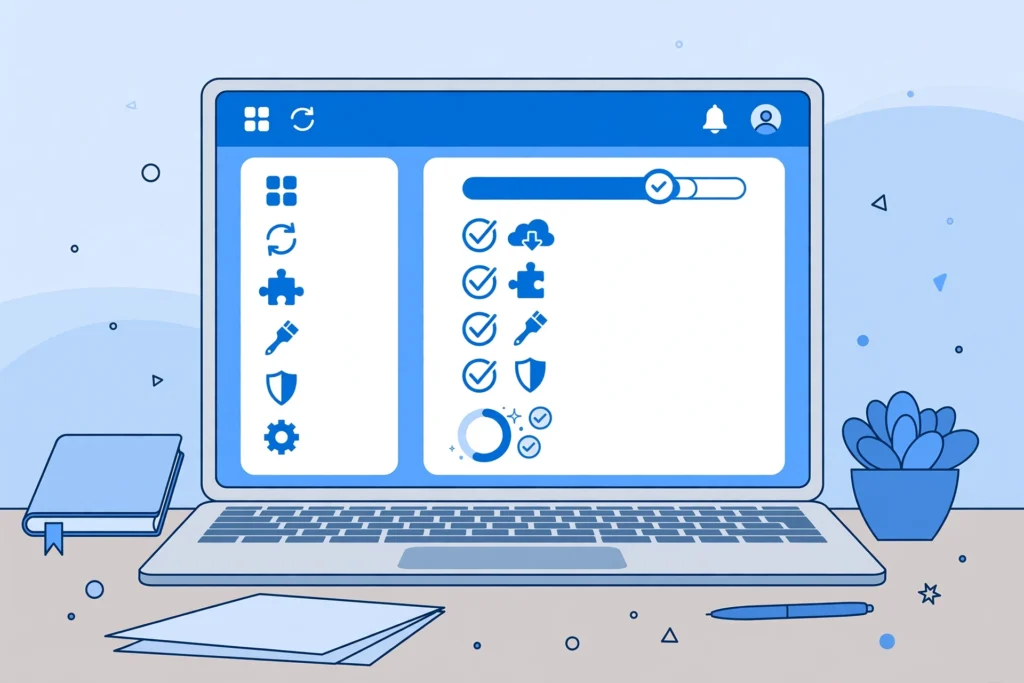
WordPress 7.1 is the current release in October 2026, following WordPress 7.0 earlier in the year, and this WordPress 7.1 update checklist will help you move to it safely. Updates bring new features, security fixes and performance improvements, but clicking “Update Now” on a live site without a plan is how layouts break and plugins stop working. A short, careful checklist turns a risky update into a routine one.
In this guide, you will back up your site, test the update safely, and verify everything afterwards.
Why the WordPress 7.1 Update Deserves a Checklist
Version 7.1 adds practical improvements rather than a redesign. You can now set block styles per viewport, for tablet and mobile, directly in the Site Editor, and developers can define custom breakpoints in theme.json. Hover, focus and active states are starting with the Button block, which means fewer custom CSS files for many small sites.
The editor also gains Notes, which bring asynchronous comments with a suggestion mode to the editing workflow. Real-time co-editing is still behind feature flags, so do not promise it to clients yet. On the reassuring side, the plan to remove the Classic block from the inserter was reversed, which is good news for older content.
There are also two housekeeping items: blocks built on an older Block API version may misbehave in the iframed editor, so custom blocks should declare apiVersion 3, and React 19 is expected to become the default later, so test your plugins now.
Before You Click Update
Do these checks first, in order:
- Take a full backup. Back up both your files and your database, and confirm the backup actually downloaded or reached your remote storage. A backup you cannot restore is not a backup.
- Check your PHP version. WordPress.org recommends PHP 8.3 or newer in 2026. If your host still runs an older version, upgrade PHP on staging first and watch for plugin warnings.
- List your must-not-break items. Note your contact form, checkout, booking form or membership login, plus your three most important pages. These are what you will test after the update.
- Update plugins and your theme first. The safe order is backup, staging, plugins and theme, then core. Many update problems are really outdated plugins meeting a new core version.
Step-by-Step WordPress 7.1 Update Checklist
- Clone the site to staging. Most good hosts offer one-click staging. If yours does not, use a staging plugin or a manual copy on a subdomain.
- Run the update on staging. Update WordPress core to 7.1, then visit the homepage, a blog post, a category page and your contact or checkout page.
- Test the editor. Open a post, try the Site Editor, check your patterns and template parts, and confirm your custom blocks still render correctly.
- Check responsive styles. Preview tablet and mobile views. With per-viewport block styles in 7.1, confirm spacing and font sizes look right on smaller screens, not just on desktop.
- Test forms and logins. Submit a test form, log out and back in, and check any membership or shop flow end to end.
- Only then update live. Repeat the same steps on the live site, ideally at a quiet time, and keep your backup close at hand.
What to Check in the New Features
After updating, spend ten minutes on what changed. Open the Site Editor and look at the new per-viewport controls: if a block looked cramped on mobile before, you may now fix it without custom CSS. Next, try Notes on a draft post and see whether it fits your team’s review workflow.
Then check your buttons. Hover, focus and active states for the Button block are a small change with a visible effect, so confirm your button colours still match your brand.
After the Update: Quick Verification
Once the live update is done, run this five-minute check. Clear your caching plugin and server cache, then reload the homepage and a post in a private browser window. Check your site on a phone, and watch for error spikes over the next day.
If something breaks, do not panic and do not start editing live code. Restore from your backup, find the conflicting plugin or block on staging, and fix it there first.
Common WordPress 7.1 Update Problems and Fixes
- White screen or broken layout: deactivate plugins one by one on staging to find the conflict, then check for an update or a replacement.
- Custom blocks misbehaving: confirm they declare apiVersion 3, and test them in the iframed editor rather than only on the front end.
- Mobile styles look wrong: revisit the block’s per-viewport settings in the Site Editor before adding custom CSS.
- Editor feels slow: clear browser cache, disable unused editor plugins, and test with a default theme on staging to isolate the cause.
Conclusion
Updating to WordPress 7.1 is straightforward when you follow a checklist: back up, test on staging, update plugins and theme first, then core, and verify your pages, forms and mobile views afterwards. Keep this checklist for the next major release too.
For more WordPress help, explore free WordPress themes and WordPress plugins on KamiWeb, read our beginner’s guide to VPS hosting, and see how to set up Cloudflare for WordPress and how to protect WordPress from critical PHP flaws.