
Safari refuses to load a website and shows “Safari can’t establish a secure connection to the server.” This Safari can’t establish a secure connection fix guide covers both sides of the problem: the quick device-side checks that resolve most cases on iPhone and Mac, and how to tell when the fault belongs to the website’s own certificate or server — because only the site owner can fix that part. Updated for 2026.
What Safari is really saying: it tried to negotiate an encrypted HTTPS connection and something failed validation — an expired or misconfigured certificate, an outdated TLS version on the server, or corrupted data on your device confusing the handshake. The trick is figuring out which side is at fault before you start changing things, since half the “fixes” floating around only help in one scenario.
What Causes the “Can’t Establish a Secure Connection” Error
- Incorrect date and time: a wrong clock invalidates every certificate — the most common device-side cause.
- Corrupted Safari cache and cookies: stale website data looping Safari into failed handshakes.
- VPN or proxy interference: VPNs and proxies that mangle or block TLS traffic.
- Outdated iOS/macOS: old Safari versions lacking current root certificates and TLS support (Safari updates only with the OS).
- Extensions and content blockers: blockers interfering with the connection setup.
- iCloud Private Relay: Apple’s relay can break sites relying on third-party logins or embedded services.
- Server-side problems: expired certificate, outdated TLS, or weak security the server — only the owner can fix these.
How to Fix “Safari Can’t Establish a Secure Connection”: 8 Steps
Step 1: Check whether it is Safari or the site
Open the site in another browser (Chrome or Firefox) on the same device. If it loads there, the problem is Safari-side — continue below. If it fails everywhere, the site’s certificate or server is at fault — skip to Step 7 and contact the site owner.
Step 2: Set date and time to automatic
On iPhone/iPad: Settings → General → Date & Time → Set Automatically (on). On Mac: System Settings → General → Date & Time → Set time and date automatically. Reload the site. This single check resolves a surprising share of cases.
Step 3: Clear Safari’s cache and website data
On iPhone/iPad: Settings → Safari → Clear History and Website Data. On Mac: Safari → Settings → Privacy → Manage Website Data → Remove All, and enable the Develop menu (Settings → Advanced → Show Develop menu) to use Empty Caches. Corrupted cached certificates are a top trigger — clearing forces a fresh handshake.
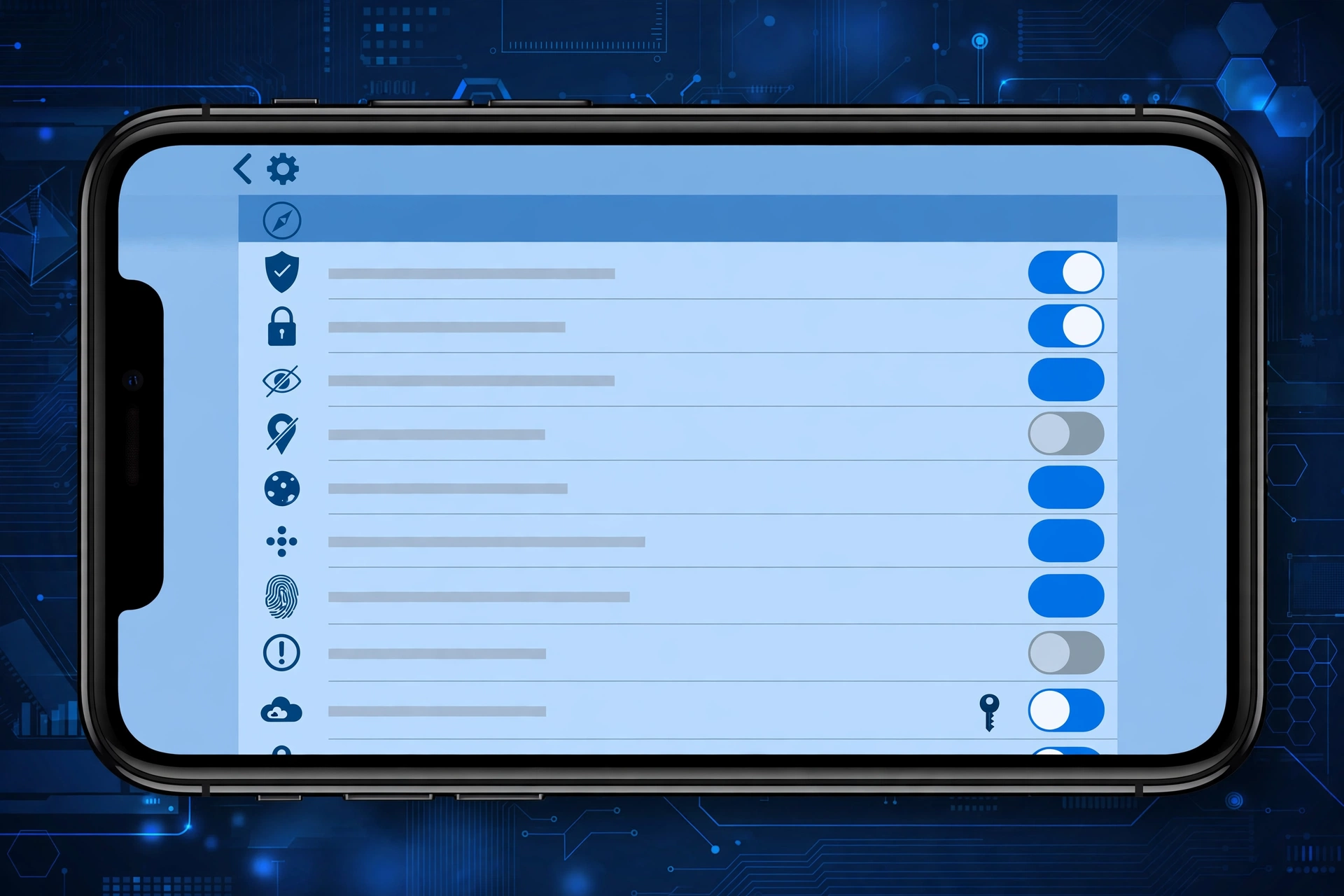
Step 4: Disable VPN, proxy, and iCloud Private Relay
Disconnect any VPN and check for proxy profiles (Settings → General → VPN & Device Management on iOS). Then test with iCloud Private Relay off: Settings → [your name] → iCloud → Private Relay. If the site loads, one of these was interfering with the TLS path — re-enable them one at a time to identify the culprit.
Step 5: Disable extensions and content blockers
On Mac: Safari → Settings → Extensions — turn everything off and retest, then re-enable one by one. On iOS: Settings → Safari → Extensions. Content blockers are frequent offenders for connection errors.
Step 6: Update iOS/macOS and restart
Safari only updates with the operating system, so install pending OS updates — they include root certificate and TLS fixes. Then restart the device fully; a restart clears stuck network processes that a simple Safari relaunch does not.
Step 7: Try different DNS and network
Switch to a reliable DNS (1.1.1.1 or 8.8.8.8) in your network settings and flush the DNS cache. Also test on a different network (mobile data vs Wi-Fi). If the site loads on another network, your router or ISP is interfering. For certificate-specific guidance, see our certificate date invalid fix.
Step 8: Site owners — meet Apple’s security bar
If you run the site: renew expired certificates, enable TLS 1.2+ (Apple blocks older protocols), serve the complete certificate chain, and test specifically in Safari — Chrome-tolerant configurations often fail WebKit. Note that older iPhones that cannot update iOS cannot update Safari either, so keep TLS settings broadly compatible.
How to Prevent Secure Connection Errors in Safari
Keep automatic updates on so Safari’s root certificates stay current, and avoid piling on network intermediaries — VPN plus Private Relay plus a content blocker is a classic recipe for handshake failures. Clear website data periodically rather than letting years of cached certificates accumulate. Site owners: monitor certificates with automated expiry alerts and test every deployment in Safari, not just Chrome. A quick check with a free SSL checker tool confirms your setup meets Apple’s standards.
Conclusion
“Safari can’t establish a secure connection” is either your device (clock, cache, VPN, outdated OS) or the site’s certificate — the cross-browser test in Step 1 tells you which in seconds. Fix your side with the steps above; if the site fails everywhere, the owner must update their certificate or TLS. For more Safari and browser errors explained plainly, follow the KamiWeb blog.