

Your application crashes with ERROR 1146 (42S02): Table ‘database.table’ doesn’t exist. A MySQL error 1146 table doesn’t exist fix starts with one question: is the table really gone, or is MySQL just looking in the wrong place? This 2026 guide walks through every cause — from failed migrations to case-sensitivity traps — and the exact fix for each.
Here is what error 1146 means. MySQL parsed your query fine, but when it went to read or write the table, the table was not there — or not visible to your user. The table might have been dropped, never created (a migration that never ran), corrupted, or simply misnamed in the query. On WordPress sites, this error most often appears after a failed plugin update, an incomplete migration, or a database restore that skipped tables.
What Causes MySQL Error 1146
- Unrun migrations: code deployed without running database migrations — the #1 cause in 2026.
- Failed or partial imports: a mysqldump restore that stopped halfway, leaving tables missing.
- Wrong database selected: the query runs against the wrong schema (
USE wrong_db). - Table prefix mismatch: WordPress looking for
wp_postswhen the tables usewp2_posts. - Case sensitivity: on Linux,
Ordersandordersare different tables. - Corrupted InnoDB tablespace: the
.ibdfile is missing or damaged after a crash. - Dropped tables: accidental
DROP TABLEor a cleanup script gone wrong.
How to Fix MySQL Error 1146: 7 Steps
Step 1: Verify which database and table are involved
Read the full error — it names both: Table 'mydb.wp_options' doesn't exist. Connect and run SHOW DATABASES; then USE mydb; SHOW TABLES; to see what actually exists. Confirm you are in the right database before anything else.
Step 2: Check spelling, prefix, and case
Compare the table name in the error against SHOW TABLES output character by character. On WordPress, check $table_prefix in wp-config.php matches the real prefix. On Linux servers, table names are case-sensitive — SHOW TABLES LIKE 'orders' will not match Orders.
Step 3: Run pending migrations
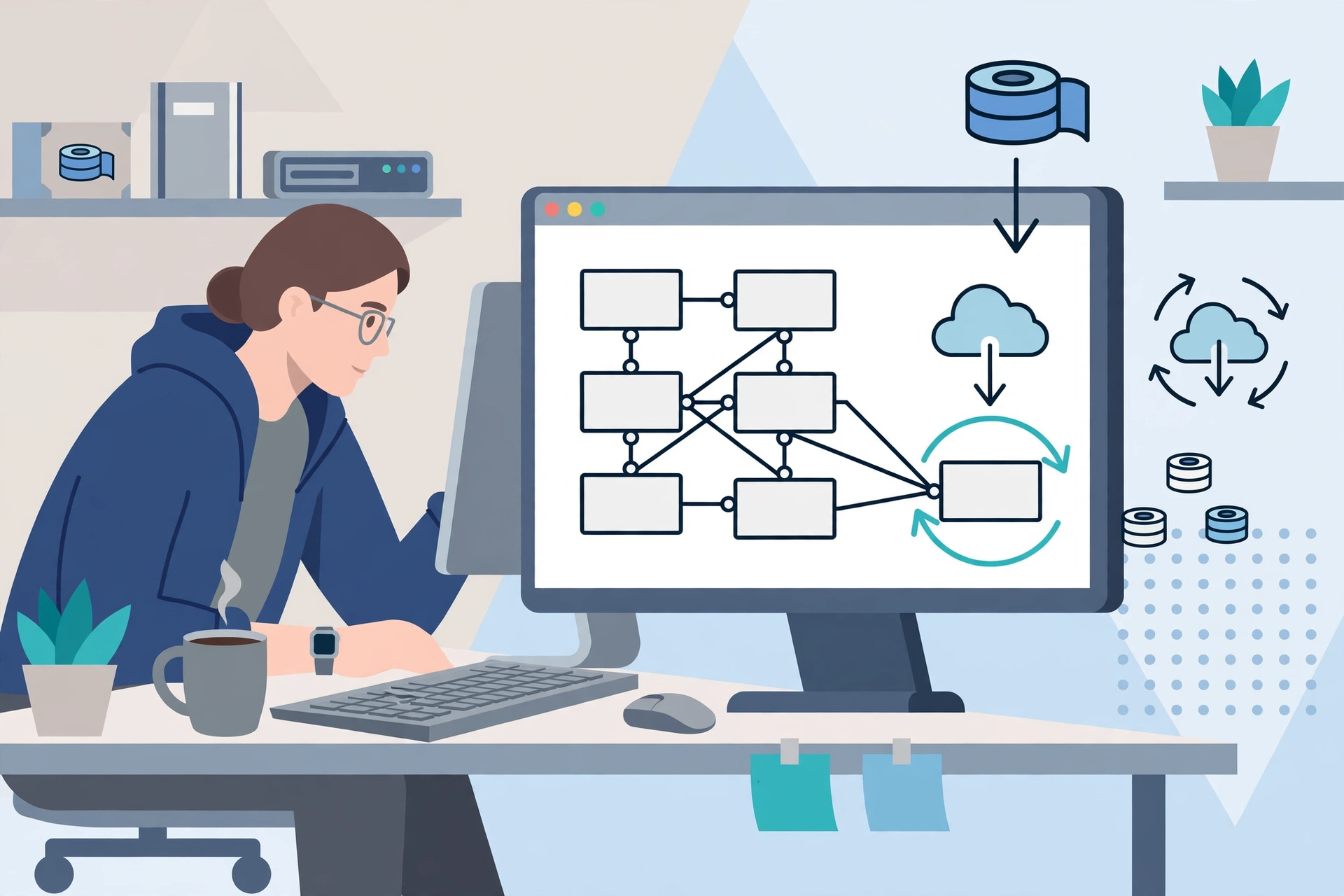
For Laravel: php artisan migrate. For WordPress plugins: deactivate and reactivate the plugin so its installer recreates its tables. For custom apps, run whatever migration tool the project uses. This resolves the majority of 1146 errors.
Step 4: Restore from backup
If the table was dropped or the import was partial, restore it: mysql -u user -p mydb < backup.sql. If you have only a table-level dump, restore just that table. Always verify with SHOW TABLES afterwards. For WordPress database disasters, our database connection fix guide covers the wider recovery.
Step 5: Repair a corrupted tablespace
If the .frm exists but the .ibd is missing, try ALTER TABLE mydb.mytable DISCARD TABLESPACE;, restore the .ibd from backup, then ALTER TABLE mydb.mytable IMPORT TABLESPACE;. For MyISAM, REPAIR TABLE mytable; may suffice.
Step 6: Recreate the table manually (last resort)
If no backup exists and you know the schema, recreate it with CREATE TABLE IF NOT EXISTS. For WordPress core tables, you can copy the schema from a fresh WordPress install’s wp-admin/includes/schema.php. For plugin tables, reinstalling the plugin is safer than hand-writing schema.
Step 7: Check permissions
Rarely, the table exists but your user cannot see it. Run SHOW GRANTS FOR 'user'@'host'; as root and grant as needed: GRANT ALL PRIVILEGES ON mydb.* TO 'user'@'localhost'; FLUSH PRIVILEGES;.
How to Prevent Error 1146
- Always run migrations as part of deployment — automate it so it cannot be skipped.
- Verify backups restore correctly with periodic test restores.
- Never run
DROP TABLEon production without a verified backup. - Keep table prefix consistent between
wp-config.phpand the database. - Use lowercase table names everywhere to dodge case-sensitivity issues.
Conclusion
MySQL error 1146 almost always means a migration never ran, an import stopped halfway, or the query names the wrong table — verify the database, check spelling and case, run migrations, and restore from backup before recreating anything by hand. With automated migrations and tested backups, you should never see this error twice. For more MySQL troubleshooting, browse the KamiWeb blog.