
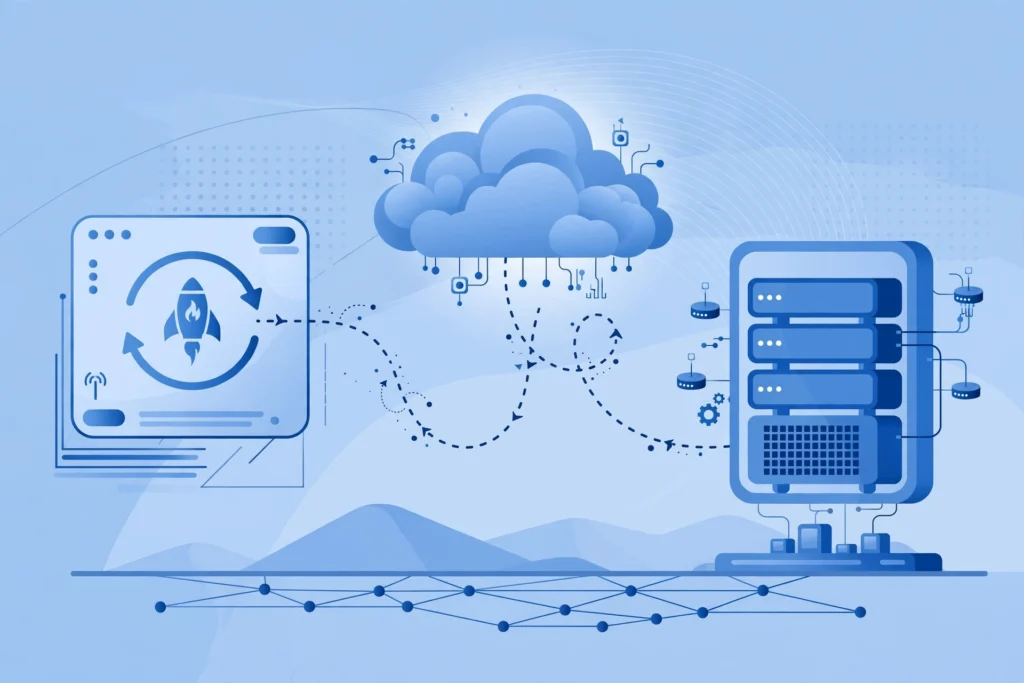
Your Jetpack dashboard shows “Jetpack connection error” or the site reports site_inaccessible, and stats, backups, and features stop working. This Jetpack connection error fix guide explains why the link between your site and WordPress.com breaks and the exact steps to restore it. Updated for 2026.
The key thing to understand: Jetpack is not really a plugin on your site — it is a bridge between your site and WordPress.com. Jetpack’s servers talk to your site through xmlrpc.php. If that file is blocked, missing, or your host rejects Jetpack’s requests, WordPress.com cannot reach your site and the connection dies. Nearly every fix here is about clearing that communication path, then reconnecting.
What Causes Jetpack Connection Errors
- Blocked xmlrpc.php: security plugins, hosts, or firewalls blocking access to
xmlrpc.php— the number-one cause. - Stale connection tokens: tokens invalidated after a host migration, domain change, or restore from backup.
- Plugin conflicts: security, redirect, or caching plugins interfering with the connection handshake.
- Server firewalls: host-level firewalls or WAFs rejecting requests from Jetpack’s IP ranges.
- Cache interference: aggressive caching breaking the connection approval flow.
- URL mismatch: Jetpack’s recorded site URL differs from the actual one (Identity Crisis / IDC).
How to Fix Jetpack Connection Errors: 7 Steps
Step 1: Verify xmlrpc.php is accessible
Visit yoursite.com/xmlrpc.php in a browser — you should see the message “XML-RPC server accepts POST requests only.” Any 403, 404, or block page means the communication path is closed and Jetpack cannot possibly connect. Also run Jetpack’s debug tool at https://jptools.wordpress.com/debug/ with your URL for a full diagnosis.
Step 2: Unblock xmlrpc.php and whitelist Jetpack’s IPs
If xmlrpc.php is blocked, find the blocker: disable security plugins one by one (Wordfence, iThemes Security, and similar are frequent culprits), and ask your host to unblock xmlrpc.php and whitelist Jetpack’s IP addresses — the current list is at jetpack.com/support/how-to-add-jetpack-ips-allowlist/. Note: if Tools → Site Health shows “WordPress.com requests to your site are being blocked,” reconnecting alone will not fix it — your tokens are still valid; the request path must be unblocked.

Step 3: Disconnect and reconnect Jetpack
Once the path is clear, go to Jetpack → Dashboard → Connections → Manage site connection, click Disconnect, confirm, then click Set up Jetpack and approve the connection on WordPress.com. This refreshes the tokens. You can also jump straight to the reconnect screen via /wp-admin/admin.php?page=jetpack#/reconnect.
Step 4: Flush the cache first
Stale cache breaks the approval flow. Purge your caching plugin, any server-side cache (LiteSpeed, Varnish), and your CDN cache before reconnecting. If you are stuck in a loop where Jetpack says connected but the dashboard still says “Connect Jetpack,” cache is the usual suspect.
Step 5: Clean reinstall if the loop persists
Disconnect, deactivate Jetpack, delete the plugin completely, then reinstall a fresh copy and connect. This clears corrupted stored options that a simple deactivate leaves behind. Deactivate other plugins during the reconnect, then re-enable them one by one afterwards.
Step 6: Fix an Identity Crisis (URL mismatch)
If stats, followers, and paid plans all vanished at once, Jetpack’s stored site URL no longer matches your real one — the “Identity Crisis” scenario. Free users should post in the Jetpack support forum; paid users contact support with the old and new URLs. Do not keep reconnecting blindly: it deepens the mismatch.
Step 7: Check Site Health and confirm
Go to Tools → Site Health and confirm all Jetpack items pass. Then verify stats load at wordpress.com/stats/day/yoursite.com. For sibling security-plugin blocks, see our Wordfence access-limited guide.
How to Prevent Jetpack Connection Breaks
Before migrating hosts, changing domains, or restoring a backup, disconnect Jetpack first and reconnect after — most stale-token failures come from these events. Keep xmlrpc.php permanently accessible to Jetpack’s IP ranges in your security plugin and host firewall, and whitelist Jetpack in rate limiters so heavy cron traffic never trips a block. Monitor connection health with a free site health tool after every infrastructure change.
Conclusion
Jetpack connection errors almost always trace back to a blocked xmlrpc.php or stale tokens — unblock the path, disconnect, flush cache, and reconnect. Your site and content are unaffected throughout; only the bridge to WordPress.com needs rebuilding. For more WordPress plugin fixes explained plainly, follow the KamiWeb blog.