
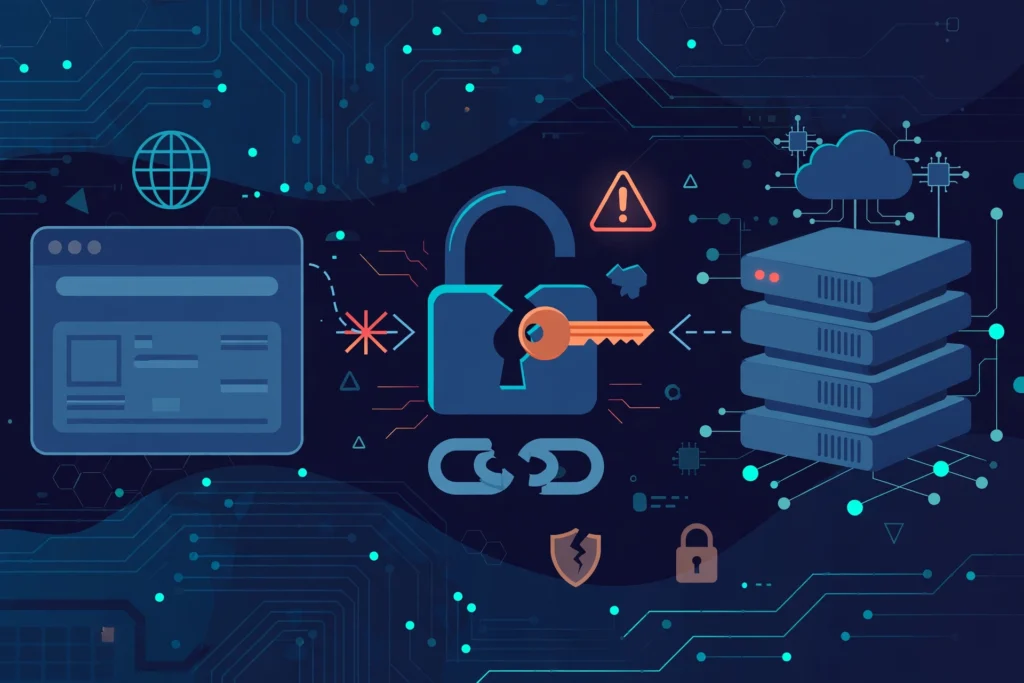
Chrome blocks a site with ERR_SSL_VERSION_OR_CIPHER_MISMATCH and offers no “proceed anyway” button. An ERR_SSL_VERSION_OR_CIPHER_MISMATCH fix hinges on what the error literally means: during the TLS handshake, your browser and the web server could not agree on a common protocol version or cipher suite — the encryption terms — so the connection was aborted before any page data moved. In almost every case the fix lives on the server, but there are visitor-side checks worth running first. This is the complete 2026 guide.
Modern Chrome only speaks TLS 1.2 and TLS 1.3 with strong ciphers. If the server offers only deprecated protocols (SSL 3.0, TLS 1.0, TLS 1.1) or weak ciphers (RC4, 3DES), there is zero overlap and the handshake dies. Note this is not a certificate name error — it is purely about the encryption negotiation. Firefox shows the same condition as SSL_ERROR_NO_CYPHER_OVERLAP.
What Causes ERR_SSL_VERSION_OR_CIPHER_MISMATCH
- Server stuck on old TLS: the site only offers TLS 1.0/1.1, which Chrome dropped support for years ago — the most common cause.
- Weak cipher suites: the server accepts only RC4, 3DES or other ciphers modern browsers refuse.
- Cloudflare SSL still activating: a fresh Cloudflare certificate that has not finished issuing can trigger this temporarily.
- Antivirus HTTPS scanning: security software intercepting TLS with its own weak cipher configuration.
- Outdated browser or OS: very old clients that cannot offer TLS 1.2+ against a properly secured server (the reverse mismatch).
- Corrupted SSL state: stale cached TLS session data on the visitor’s machine.
- QUIC interference: Chrome’s QUIC layer occasionally surfacing as a cipher mismatch on misconfigured networks.
How to Fix ERR_SSL_VERSION_OR_CIPHER_MISMATCH: 8 Steps
Step 1: Check whether it is one site or every site
Open several major HTTPS sites (Google, Wikipedia). If only one site fails, the problem is that site’s server — skip to Step 7 and contact the site owner. If many sites fail, the problem is on your machine — continue below.
Step 2: Clear the SSL state and browser cache
Press Win + R, type inetcpl.cpl, go to the Content tab and click Clear SSL state. Then press Ctrl + Shift + Delete in Chrome, select All time, and clear cached images/files and cookies. Reload the site.
Step 3: Update Chrome and your OS
Go to the three-dot menu → Help → About Google Chrome and install updates, then install pending OS updates too — TLS capabilities partly come from the operating system. An ancient browser against a modern server produces exactly this error.
Step 4: Disable QUIC as a test
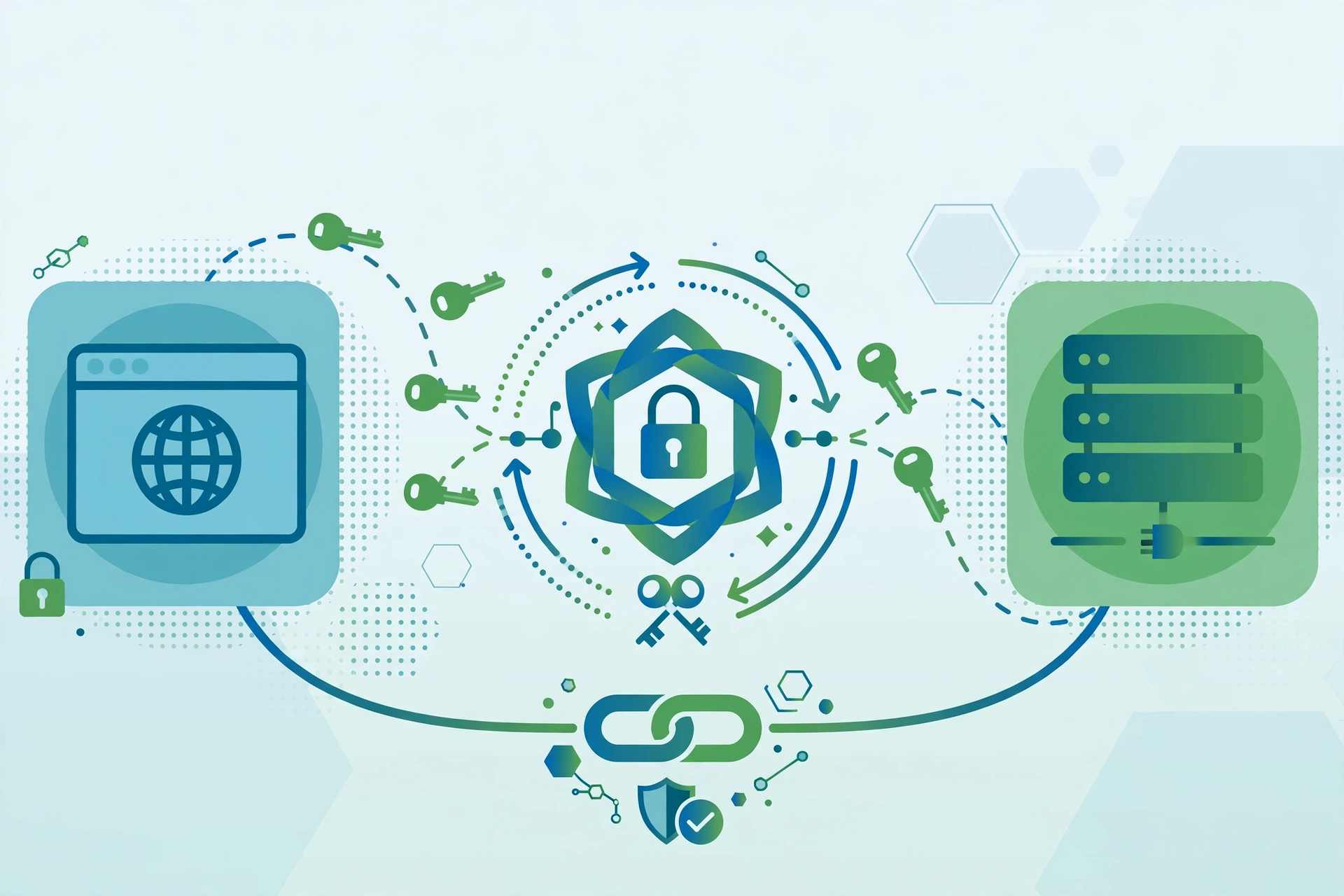
Type chrome://flags/#enable-quic, set Experimental QUIC protocol to Disabled, and relaunch. QUIC uses its own TLS-based encryption layer that some firewalls mishandle, surfacing as a cipher mismatch. If the site loads now, leave QUIC off or fix the middlebox.
Step 5: Turn off antivirus HTTPS scanning
Open your antivirus settings and disable the HTTPS/web-shield scanning component specifically. These tools man-in-the-middle your TLS connections, and a misconfigured one breaks the handshake. Reload the page to test.
Step 6: Check date, time and try another network
Enable automatic date and time — a wrong clock breaks TLS negotiation. Also try a mobile hotspot: if the site loads there, your network’s firewall or proxy is interfering with the handshake.
Step 7 (site owners): enable TLS 1.2/1.3 with modern ciphers
This is the real fix for single-site cases. Run the domain through SSL Labs’ SSL Test to see the grade and the exact gaps, then: enable TLS 1.2 and TLS 1.3; disable SSL 3.0, TLS 1.0 and TLS 1.1; remove RC4 and 3DES from the cipher list; use a SHA-256 certificate with RSA 2048+ or ECDSA. For Nginx set ssl_protocols TLSv1.2 TLSv1.3; with a modern ssl_ciphers list; for Apache set SSLProtocol and SSLCipherSuite accordingly. On Cloudflare, confirm the certificate finished activating and the DNS record is proxied.
Step 8 (site owners): verify the full chain
Install the complete certificate chain (fullchain.pem), confirm the certificate covers the exact domain, and re-run the SSL Labs test until you score an A. A missing intermediate certificate can also abort handshakes on strict clients. For related certificate errors, see our certificate date invalid fix.
How to Prevent Cipher Mismatch Errors
Site owners: follow the Mozilla Intermediate TLS configuration profile and re-audit yearly — browsers deprecate old protocols on a steady cadence, and today’s compliant server becomes tomorrow’s mismatch. Automate certificate renewal and set expiry alerts. Visitors: keep Chrome and your OS updated and avoid security software that proxies HTTPS traffic. A periodic scan with a free SSL checker tool keeps both sides honest.
Conclusion
ERR_SSL_VERSION_OR_CIPHER_MISMATCH is a failed negotiation: the browser offered modern TLS, the server could only answer in an obsolete dialect. Visitors should clear SSL state, update everything, and test another network; site owners must enable TLS 1.2/1.3 with strong ciphers. There is no safe click-through — and that is by design. For more TLS errors explained plainly, follow the KamiWeb blog.