
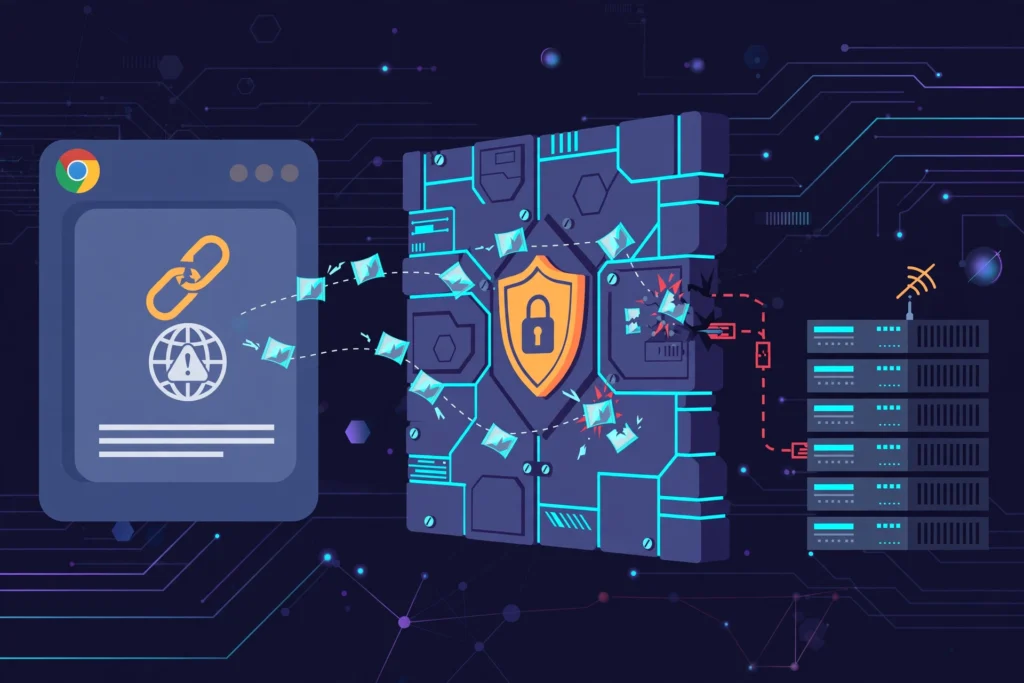
Chrome shows ERR_QUIC_PROTOCOL_ERROR and the site will not load. An ERR_QUIC_PROTOCOL_ERROR fix is usually a 30-second job once you know what QUIC is: Google’s experimental transport protocol that runs web traffic over UDP instead of TCP (the basis of HTTP/3). When anything in the path — a firewall, VPN, proxy, or antivirus — blocks or mangles UDP/QUIC traffic, Chrome fails the connection and shows this error. This 2026 guide explains the causes and the fixes in order.
QUIC is designed to make connections faster and more resilient, and Chrome enables it by default. The catch: many corporate firewalls, older routers, VPN clients, and security tools were built for a TCP-only world. They silently drop or inspect UDP packets they do not understand, which breaks QUIC handshakes while regular browsing keeps working — confusing, but very fixable.
What Causes ERR_QUIC_PROTOCOL_ERROR
- Firewall blocking UDP: network firewalls that drop UDP traffic kill QUIC while TCP sites load fine.
- Conflicting extensions: privacy and ad-blocking extensions interfering with the connection setup.
- Outdated Chrome: older builds contain QUIC handshake bugs fixed in newer releases.
- Unstable network: packet loss on UDP-heavy paths triggers QUIC failures more readily than TCP.
- Broken server HTTP/3 endpoint: a site advertising HTTP/3/QUIC but serving it unreliably.
How to Fix ERR_QUIC_PROTOCOL_ERROR: 7 Steps
Step 1: Disable QUIC in Chrome flags
This is the fastest fix and resolves the issue for most people. Type chrome://flags/#enable-quic in the address bar, set Experimental QUIC protocol to Disabled, and click Relaunch. Chrome will use TCP-based HTTP/2 for everything. Reload the failing site — if it loads, QUIC was the problem.
Step 2: Update Chrome
Go to the three-dot menu → Help → About Google Chrome and install updates. Google continuously fixes QUIC handshake bugs; newer builds also fall back to TCP more gracefully when QUIC fails.
Step 3: Disable extensions
Open chrome://extensions and turn off all extensions, then test the site. Re-enable one by one to find the culprit. Ad blockers and privacy tools are the most frequent offenders here.

Step 4: Temporarily disable VPN, proxy and antivirus shields
Disconnect your VPN, turn off any manual proxy, and pause your antivirus’s web/traffic scanning feature. Reload the page. If it works, re-enable each item one at a time to identify which one breaks QUIC — then whitelist the site or adjust that tool’s settings.
Step 5: Flush DNS and reset the network stack
Open Command Prompt as administrator and run these commands one at a time, then restart your PC:
ipconfig /flushdnsnetsh winsock resetnetsh int ip reset
This clears stale network state that can interfere with fresh QUIC handshakes.
Step 6: Restart the router and test another network
Unplug your router for 60 seconds, plug it back in, and retest. Also try a mobile hotspot: if the site loads on the hotspot but not on your Wi-Fi, your router or ISP is blocking or degrading UDP traffic.
Step 7: Check whether the site’s HTTP/3 is broken
If only one website triggers the error everywhere, its server may advertise HTTP/3/QUIC unreliably — advertising QUIC and then failing on it is worse than not offering it. Site owners should verify their HTTP/3 endpoint with an online HTTP/3 checker and fix or disable it. For the sibling protocol error, see our HTTP/2 protocol error fix.
How to Prevent ERR_QUIC_PROTOCOL_ERROR
Keep Chrome updated so QUIC fallback behaviour stays current. If you run a VPN or corporate firewall, check that it explicitly supports QUIC/UDP passthrough rather than silently dropping it. Site owners: do not enable HTTP/3 unless the endpoint is dependable and monitored — a broken QUIC advertisement punishes every Chrome visitor. A periodic check with a free website speed tool helps confirm your protocol setup is healthy.
Conclusion
ERR_QUIC_PROTOCOL_ERROR means Chrome’s fast UDP path hit a wall — usually a firewall, VPN, or antivirus that does not speak QUIC. Disabling QUIC in chrome://flags is the instant workaround; updating Chrome and taming interfering software is the lasting fix. For more Chrome network errors explained without jargon, browse the KamiWeb blog.