
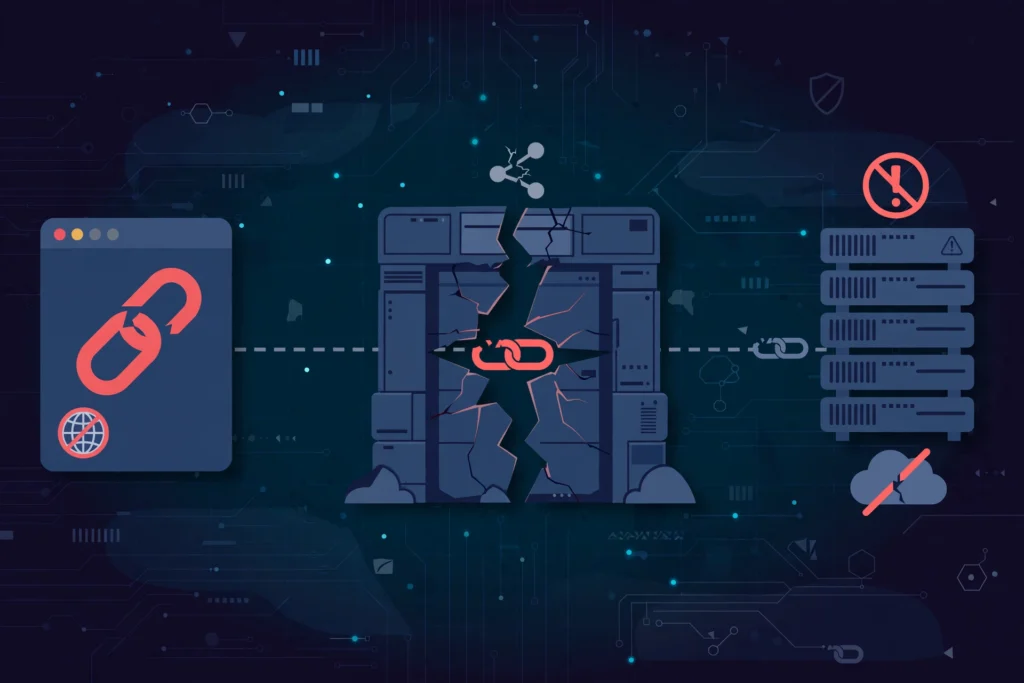
Chrome shows ERR_PROXY_CONNECTION_FAILED and no website will load. An ERR_PROXY_CONNECTION_FAILED fix starts with what the error plainly says: Chrome was told to route your traffic through a proxy server, it tried to reach that proxy, and got nothing back. Your internet connection itself is usually fine — the proxy in the middle is wrong, offline, or was set without your knowledge. This 2026 guide walks through the fixes in order.
A proxy is an intermediary server your browser sends requests through. On home connections most people do not use one at all — which is why this error is so often a surprise. The usual story: a VPN client set a system proxy and crashed without removing it, a browser extension changed the setting, or adware installed a malicious proxy to intercept traffic.
What Causes ERR_PROXY_CONNECTION_FAILED
- Leftover VPN proxy setting: a VPN client that set a system-wide proxy and failed to clear it on disconnect — the single most common cause.
- Manually misconfigured proxy: a wrong proxy address or port typed into the system settings.
- Dead proxy server: the configured proxy is offline or unreachable.
- Malware or adware: unwanted software that silently sets a proxy to intercept your browsing.
- Browser extensions: proxy/VPN extensions changing Chrome’s proxy configuration.
- Corrupted cache: stale browser data occasionally compounding the failure.
- Firewall blocking the proxy: security software preventing Chrome from reaching a legitimate proxy.
How to Fix ERR_PROXY_CONNECTION_FAILED: 7 Steps
Step 1: Turn off the proxy in system settings
Chrome uses your operating system’s proxy configuration, so fix it there. On Windows 11/10: open Settings → Network & internet → Proxy, and turn off “Use a proxy server” under Manual proxy setup (leave “Automatically detect settings” on). Alternatively: Control Panel → Internet Options → Connections → LAN settings → uncheck “Use a proxy server for your LAN”. On Mac: System Settings → Network → your connection → Details → Proxies, and uncheck all protocols. Restart Chrome and retest.
Step 2: Check for a crashed VPN client
If the error appeared right after a VPN session ended, the VPN almost certainly left its proxy behind. Open the VPN app and disconnect cleanly (or reinstall it briefly to let it clean up), then repeat Step 1 to confirm the proxy is gone.
Step 3: Scan for malware and remove suspicious extensions
If you never configured a proxy yourself and one was switched on, treat it as a possible infection: run a full scan with Windows Defender or Malwarebytes. In Chrome, go to chrome://extensions and remove any proxy, VPN, or “free” utility extension you do not recognise. Malware-set proxies are a classic adware technique.
Step 4: Verify the proxy server is actually reachable
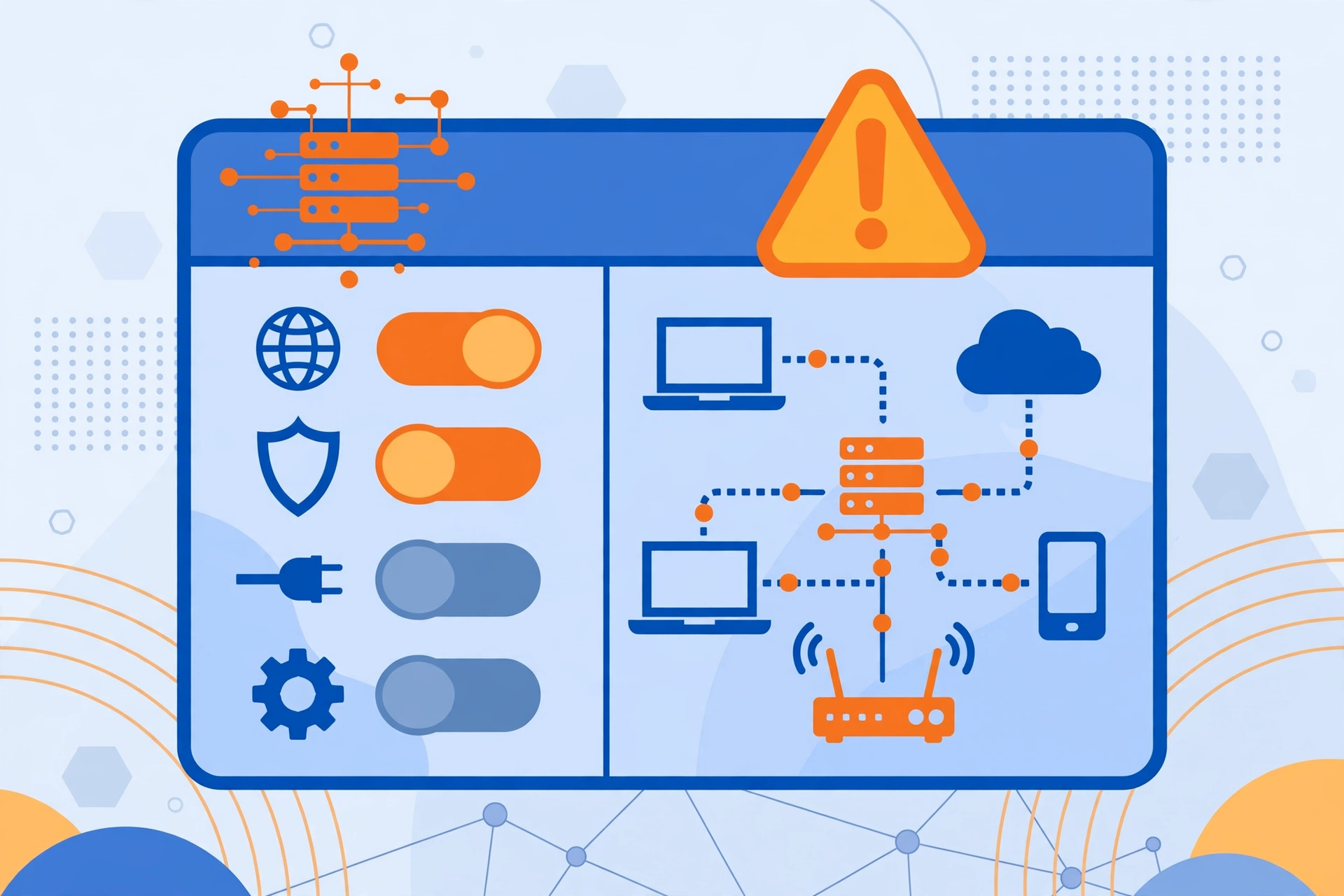
If you do need a proxy (work or school), confirm it is alive: open Command Prompt and run ping your-proxy-address. Timeouts mean the server is down — contact your IT administrator or proxy provider. Also double-check the address and port for typos.
Step 5: Clear browser cache and cookies
Press Ctrl + Shift + Delete, choose All time, tick cookies and cached files, and clear. Corrupted stored data can keep Chrome failing even after the proxy setting is fixed.
Step 6: Reset the network stack
Open Command Prompt as administrator and run netsh winsock reset followed by netsh int ip reset, then restart your PC. This rebuilds Windows’ network configuration, clearing any damaged proxy-related state.
Step 7: Reset Chrome to defaults
As a last resort, go to chrome://settings/reset and click “Restore settings to their original defaults”. This wipes bad configuration while keeping bookmarks and passwords. If pages load after the reset, an extension or setting was the holdout. For related connectivity errors, see our internet disconnected fix guide.
How to Prevent ERR_PROXY_CONNECTION_FAILED
Always disconnect VPNs through the app itself rather than force-closing it, so it can remove its proxy cleanly. Avoid installing “free VPN” or “proxy” browser extensions from unknown publishers — they are a leading source of both unwanted proxies and adware. Keep a reputable antivirus active, and glance at your system’s proxy settings after installing any networking software. A periodic review with a free network testing tool helps confirm your connection path is clean.
Conclusion
ERR_PROXY_CONNECTION_FAILED almost always means a proxy setting that should not be there — usually a VPN’s leftover. Clear it in your OS settings, scan for the malware or extension that may have set it, and Chrome connects directly again. If you genuinely need a proxy, verify the server is alive and the address is correct. For more Chrome connection errors fixed step by step, keep reading the KamiWeb blog.