
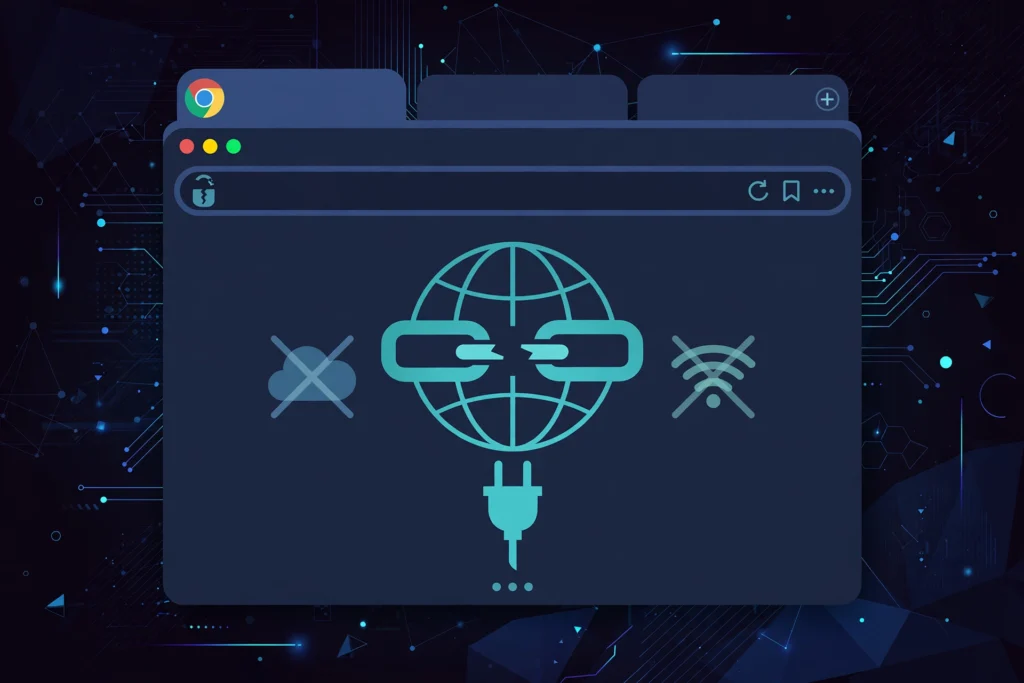
Chrome shows ERR_INTERNET_DISCONNECTED — “There is no internet connection” — or its close cousin ERR_NETWORK_CHANGED, “A network change was detected.” An ERR_INTERNET_DISCONNECTED fix is about your connection, not the website: Chrome cannot reach the internet at all, or the network shifted under it mid-load (Wi-Fi dropped and reconnected, a VPN toggled, you switched networks). This 2026 guide covers both errors with the same troubleshooting ladder.
The two errors are siblings. ERR_INTERNET_DISCONNECTED means the device currently has no working path to the internet. ERR_NETWORK_CHANGED means Chrome noticed the network identity change — new IP, new gateway, VPN on/off — and aborted in-flight page loads as a safety measure. Both are fixed by stabilising the connection rather than touching the browser.
What Causes These Network Errors
- Wi-Fi dropout: the wireless signal dropped briefly and reconnected — enough to trip Chrome’s network-change detection.
- Router or modem glitch: the router needs a restart or lost its upstream connection.
- ISP outage: your provider is down in your area; nothing on your device will fix it.
- VPN toggling: connecting or disconnecting a VPN changes your network identity instantly.
- Switching networks: moving between Wi-Fi and mobile data, or between access points.
- Stale DNS or IP configuration: corrupted DNS cache or a conflicting IP assignment.
- Proxy misconfiguration: a bad manual proxy making every connection fail.
- Faulty network drivers or extensions: outdated Wi-Fi drivers, or extensions acting as proxies.
How to Fix ERR_INTERNET_DISCONNECTED: 8 Steps
Step 1: Confirm the scope of the outage
Try loading two or three different websites, then check another device on the same network. If everything is offline everywhere, the problem is your router or ISP — skip to Step 3. If only Chrome fails while other apps work, the issue is browser-level — jump to Step 6.
Step 2: Reconnect and get closer to the router
Disconnect Wi-Fi, wait a few seconds, and reconnect. Move closer to the router if the signal is weak, and if possible test with an Ethernet cable to rule out wireless issues entirely. Reload the page after reconnecting.
Step 3: Restart the router and modem
Unplug both the router and modem from power, wait a full 60 seconds, plug the modem back in first, then the router, and give them one to two minutes to boot. This clears transient states that cause most home-network outages. Restart your computer too.
Step 4: Flush DNS and renew your IP
Open Command Prompt as administrator and run these commands one at a time, then restart your PC:
ipconfig /flushdnsipconfig /releasethenipconfig /renewnetsh winsock resetandnetsh int ip reset
On Mac, use sudo dscacheutil -flushcache in Terminal, or remove and re-add the Wi-Fi service in System Settings → Network.
Step 5: Disable VPN and proxy settings
Disconnect any VPN completely. Then check for proxy interference: Windows Settings → Network & internet → Proxy → turn off manual proxy; Mac: Network → Proxies → uncheck all. A stale proxy is a classic cause of total connection failure — see our proxy connection failed guide.
Step 6: Disable Chrome extensions and clear cache
Extensions that act as proxies (VPNs, location changers) can kill Chrome’s connectivity: disable them at chrome://extensions. Then press Ctrl + Shift + Delete, clear cached data for All time, and reload. Test in Incognito mode as well.
Step 7: Update network drivers and check for interference
In Device Manager, update your Wi-Fi adapter driver. Temporarily disable third-party antivirus firewalls to rule out over-aggressive blocking. On Windows, you can also reset the network entirely via Settings → Network & internet → Advanced network settings → Network reset.
Step 8: Contact your ISP
If neighbours are offline too, or the router’s internet light stays red after a restart, call your provider — there may be an area outage or a line fault only they can fix. As a last resort for a stubborn browser-only case, reinstall Chrome.
How to Prevent Network Disconnection Errors
Keep your router’s firmware updated and restart it every month or two — routers accumulate state that causes exactly these glitches. Use a wired connection for desktops that never move. Avoid toggling VPNs mid-browsing session when you can, and keep network drivers current. If disconnects are frequent, ask your ISP to check line quality; chronic ERR_NETWORK_CHANGED often means an unstable line, not a browser problem. A quick connection check with a free internet speed tool helps document the pattern.
Conclusion
ERR_INTERNET_DISCONNECTED and ERR_NETWORK_CHANGED are Chrome telling you the road disappeared, not that the destination is broken. Confirm the scope, restart the router, flush DNS, and clear VPN/proxy interference — that ladder resolves nearly every case. When the whole street is dark, it is your ISP’s turn. For more connectivity errors fixed step by step, follow the KamiWeb blog.