

Chrome shows DNS_PROBE_FINISHED_NO_INTERNET and declares there is no internet — while your other apps happily stay online. This DNS_PROBE_FINISHED_NO_INTERNET fix guide clears up the confusion: Chrome ran its own connectivity probe, the probe failed, and Chrome concluded the network was down. The usual culprits are a dead DNS configuration, a corrupted Chrome DNS cache, or a firewall blocking Chrome specifically. This 2026 guide fixes each in turn.
Key distinction: this error is Chrome-specific. If Firefox, Edge, or your phone load sites fine on the same network, the internet is up and the problem lives inside Chrome or its network permissions. If nothing loads anywhere, treat it as a general outage first (restart the router) and come back here for the Chrome-specific steps.
What Causes DNS_PROBE_FINISHED_NO_INTERNET
- Dead DNS servers: the configured resolvers (often ISP defaults) are not answering.
- Corrupted Chrome DNS cache: Chrome’s internal host cache holds bad entries.
- Firewall/antivirus blocking Chrome: Chrome specifically denied network access while other apps pass.
- Stale system DNS cache: expired or poisoned entries at OS level.
- Broken Chrome profile or settings: proxy settings or flags misconfigured inside Chrome.
- Router-level DNS failure: the router’s forwarder hung, affecting new lookups.
How to Fix DNS_PROBE_FINISHED_NO_INTERNET: 8 Steps
Step 1: Verify the internet is actually up
Open another browser or check your phone on the same Wi-Fi. If they load sites, the internet is fine and this is a Chrome problem — continue below. If nothing loads anywhere, restart your router/modem (unplug 30 seconds) before doing anything Chrome-specific.
Step 2: Clear Chrome’s internal DNS cache
Type chrome://net-internals/#dns in the address bar and click Clear host cache. Then go to chrome://net-internals/#sockets and click Flush socket pools. Quit Chrome completely and reopen it — this clears the exact caches behind the failed probe.
Step 3: Switch to Google or Cloudflare DNS
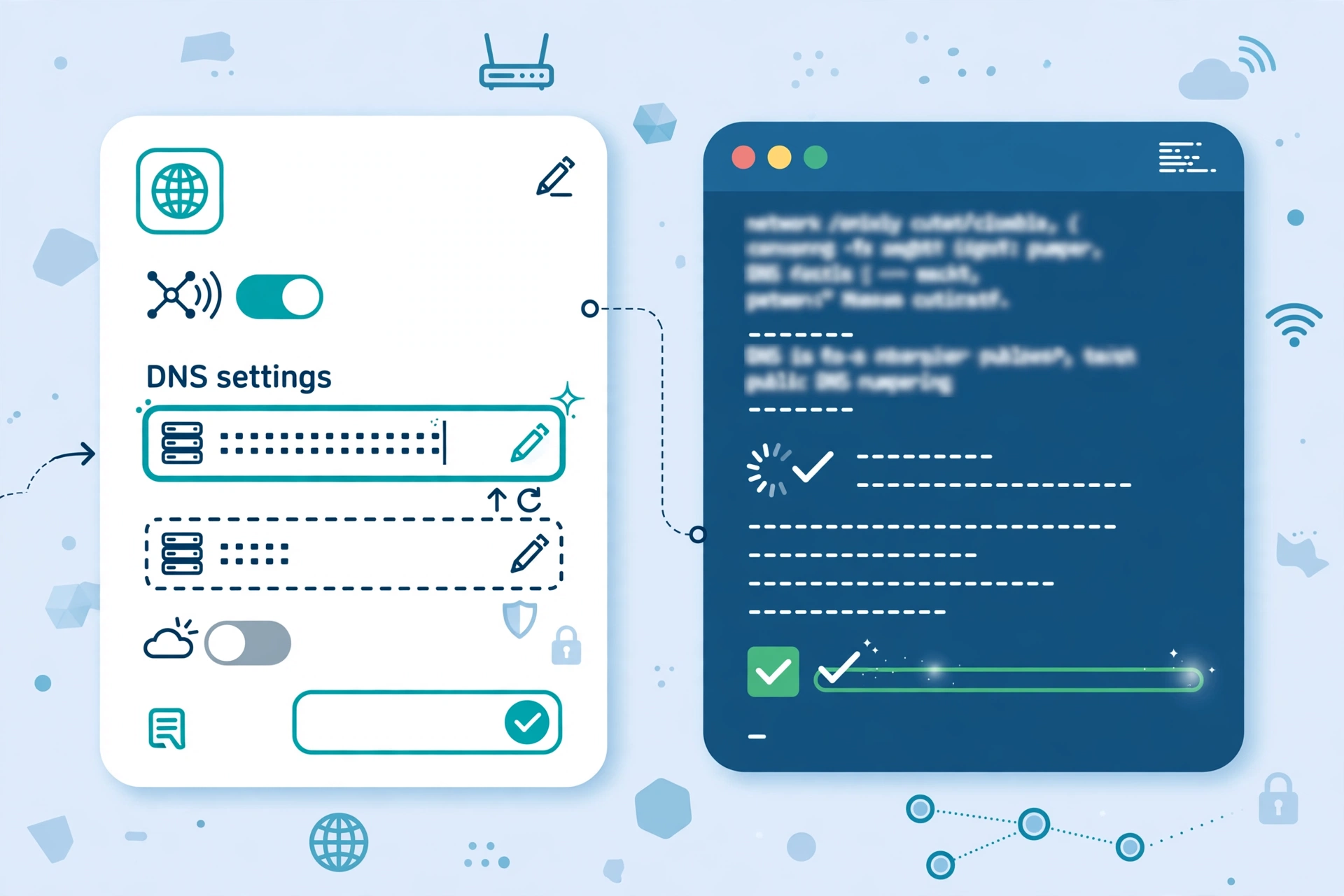
Dead ISP resolvers are the top cause. On Windows: Control Panel → Network and Sharing Center → Change adapter settings → right-click connection → Properties → IPv4 → Properties → “Use the following DNS server addresses”: 8.8.8.8 and 8.8.4.4 (or 1.1.1.1 / 1.0.0.1). Save, restart the PC, and retest.
Step 4: Flush the system DNS cache and renew IP
As administrator: ipconfig /flushdns, then ipconfig /release and ipconfig /renew. This clears OS-level entries Chrome falls back to and fetches a fresh configuration from the router.
Step 5: Check firewall and antivirus for Chrome blocks
Open Windows Security → Firewall → “Allow an app through firewall” and confirm Chrome is allowed on private (and public, if needed) networks. In your antivirus, look for a blocked-applications list — Chrome sometimes lands there after updates. Temporarily disabling protection for a 60-second test confirms the diagnosis.
Step 6: Clear Chrome browsing data
Press Ctrl + Shift + Delete, set Time range to All time, tick “Cookies and other site data” and “Cached images and files”, and clear. Corrupted site data can wedge Chrome’s network stack into reporting no connectivity.
Step 7: Disable VPN, proxy, and extensions
Turn off any VPN and check Chrome → Settings → System → “Open proxy settings” for a stale manual proxy. Then test in Incognito (Ctrl + Shift + N) — if it works there, an extension is interfering; disable them one by one at chrome://extensions.
Step 8: Reset Chrome settings
As a last resort: Settings → Reset settings → “Restore settings to their original defaults”. This clears bad proxy/flag configurations while keeping bookmarks and passwords. For the sibling misconfiguration error, see our connection troubleshooting guide.
How to Prevent DNS_PROBE_FINISHED_NO_INTERNET
- Use dependable public DNS (1.1.1.1 or 8.8.8.8) instead of flaky ISP resolvers.
- Keep Chrome updated — networking bugs get fixed constantly.
- After installing new security software, verify Chrome still has firewall permission.
- Reboot the router periodically; its DNS forwarder is a common silent failure point.
Conclusion
DNS_PROBE_FINISHED_NO_INTERNET is Chrome’s probe crying wolf: clear its internal DNS cache, switch to reliable public DNS, and make sure the firewall actually lets Chrome out. Work the list top-down and the “no internet” that was never really gone will be back. For more Chrome network errors decoded plainly, follow the KamiWeb blog.