

Chrome refuses every website with DNS_PROBE_FINISHED_BAD_CONFIG — “This site can’t be reached.” This DNS_PROBE_FINISHED_BAD_CONFIG fix guide targets exactly what the name says: your DNS configuration is wrong. Somewhere between your device, your router, and your ISP, the DNS server addresses are misconfigured, corrupted, or unreachable, so no domain name can be translated into an IP. It often appears after waking a laptop, restarting the router, or changing networks. This 2026 guide repairs the configuration layer by layer.
Think of it as a misaddressed letter: the postal system (your connection) works, but the address book (DNS settings) has wrong entries. The fix is therefore not “more internet” but “correct addresses” — flushing bad data, then pointing the system at DNS servers that actually answer.
What Causes DNS_PROBE_FINISHED_BAD_CONFIG
- Incorrect manual DNS entries: a typo or a dead custom DNS server typed in long ago.
- Corrupted DNS cache: stale entries surviving a network change.
- Router firmware glitches: the router handing out broken DNS via DHCP after a restart.
- VPN leftovers: a disconnected VPN’s DNS settings still applied to the adapter.
- Antivirus DNS filtering: “web protection” features hijacking DNS and failing.
- Outdated network drivers: driver bugs breaking DNS after OS updates.
How to Fix DNS_PROBE_FINISHED_BAD_CONFIG: 8 Steps
Step 1: Restart the router
Power the router off for 20–30 seconds, then back on. This alone resolves a large fraction of cases: the restart clears the router’s glitched DHCP/DNS state and hands your device a fresh, working configuration.
Step 2: Flush the DNS cache
Windows (as administrator): ipconfig /flushdns → “Successfully flushed the DNS Resolver Cache.” Mac: sudo dscacheutil -flushcache; sudo killall -HUP mDNSResponder. Linux: sudo systemd-resolve --flush-caches. Restart the browser and retest.
Step 3: Renew the IP lease
Run ipconfig /release then ipconfig /renew. If the router was handing out a bad DNS server via DHCP, the renew pulls a corrected one. Check with ipconfig /all that the DNS Servers line now shows sane values.
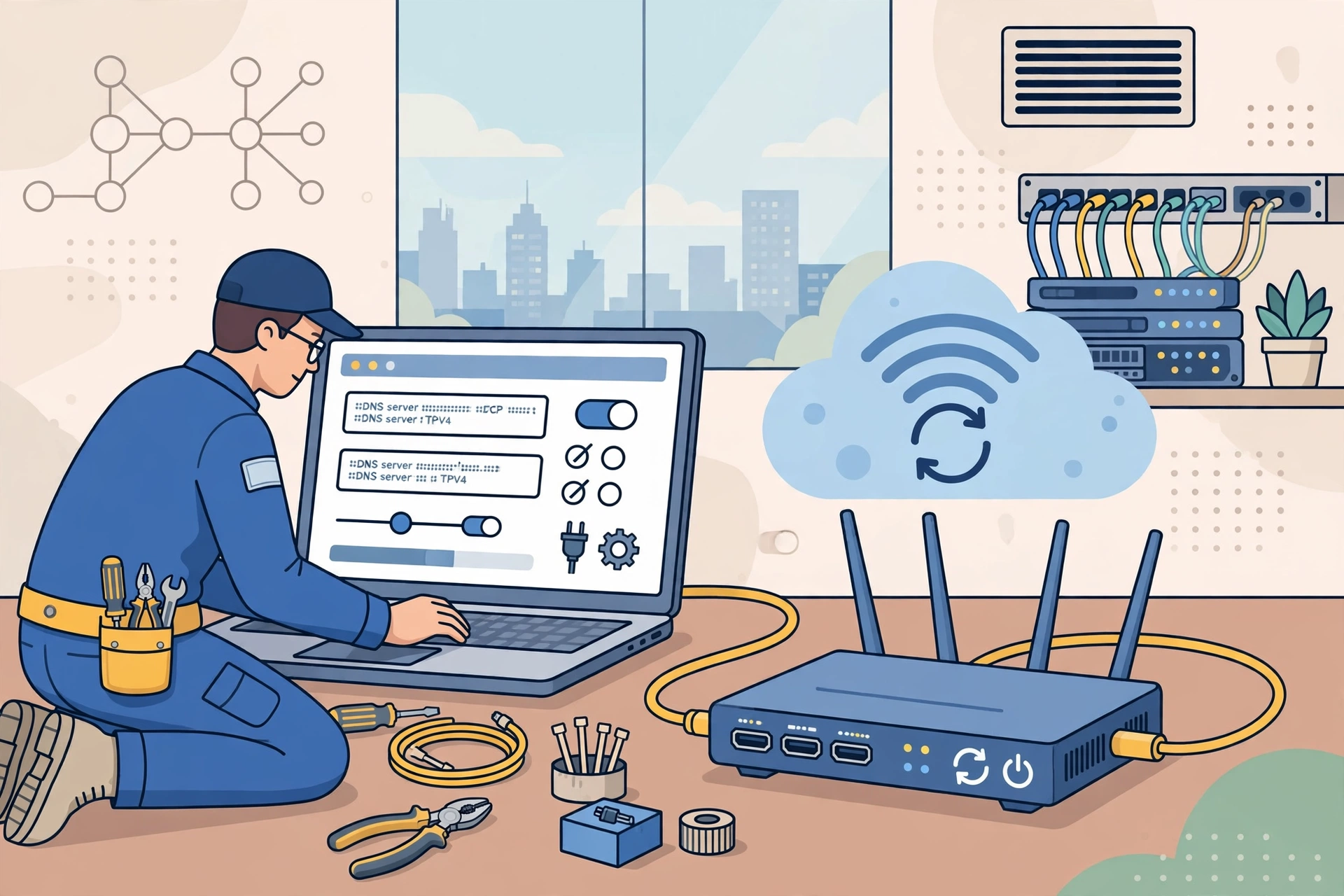
Step 4: Set public DNS manually
Override everything: adapter Properties → Internet Protocol Version 4 → Properties → “Use the following DNS server addresses”: Preferred 8.8.8.8, Alternate 8.8.4.4 (Google) — or 1.1.1.1 / 1.0.0.1 (Cloudflare). This bypasses router and ISP DNS entirely and is the most reliable fix in this guide.
Step 5: Clear Chrome’s host cache and browsing data
Visit chrome://net-internals/#dns → Clear host cache. Then Ctrl + Shift + Delete → All time → cookies and cached files → Clear data. Chrome keeps its own DNS layer, and it needs the same fresh start.
Step 6: Disable VPN, antivirus DNS filtering, and firewall blocks
Disconnect any VPN and check that no “DNS protection” feature in your antivirus is active. Temporarily disable the firewall/antivirus for a quick test — if sites load, add a DNS allow rule (UDP/TCP 53) and re-enable protection.
Step 7: Reset TCP/IP and the network stack
As administrator: netsh int ip reset and netsh winsock reset, then restart. On Windows 10/11 you can also use Settings → Network & Internet → Advanced network settings → Network reset. This restores corrupted network configuration to defaults.
Step 8: Update network drivers
Device Manager → Network adapters → right-click yours → Update driver → Search automatically. If the error started right after a Windows update, also try “Roll back driver” — update-introduced regressions are a documented cause. For the related unresponsive-server error, see our connection troubleshooting guide.
How to Prevent DNS_PROBE_FINISHED_BAD_CONFIG
- Leave DNS on reliable public resolvers (1.1.1.1 / 8.8.8.8) rather than ISP defaults.
- Fully disconnect VPN clients instead of just closing their windows.
- Keep router firmware and network drivers updated.
- After changing networks (office → home → hotel), flush the DNS cache once.
Conclusion
DNS_PROBE_FINISHED_BAD_CONFIG is a configuration error wearing an internet-outage costume: restart the router, flush the cache, renew the lease, and point the system at public DNS that answers. Those four steps cure the vast majority of cases. For more DNS and network errors in plain language, browse the KamiWeb blog.