

You click Install on a plugin or theme and WordPress replies: “Installation failed: Could not create directory.” Nothing installs, and you’re stuck. This could not create directory WordPress fix guide explains why WordPress can’t create the folder it needs (hint: file permissions), how to confirm it in Site Health, and five steps to restore proper permissions so installs and updates work again.
What Causes “Could Not Create Directory”
Installing or updating a plugin/theme requires WordPress to create a new folder inside wp-content/plugins/ or wp-content/themes/. If the web server process doesn’t have write permission for those locations, the whole installation aborts. The usual causes are:
- Wrong file permissions: folders must be 755 and files 644. After a migration, a server move, or a careless permission change, these can be too strict for WordPress to write.
- Wrong file ownership: if files are owned by a different user (e.g.
root) than the web-server user (www-data), permissions alone won’t help — the server still can’t write. - Security plugin or server hardening gone too far: some security plugins and host-level hardening lock down file writes aggressively, blocking even legitimate installs and media uploads.
- Disk space exhausted: a full disk or exceeded hosting quota blocks new folder creation just as effectively as bad permissions.
- Missing FTP method configuration: when WordPress can’t write directly, it asks for FTP credentials. If that handshake fails (wrong credentials, blocked port), installation dies. Adding
define('FS_METHOD', 'direct');towp-config.phptells WordPress to write directly instead. - Common on new and localhost installs: fresh installs and local environments (XAMPP, LocalWP) frequently ship with restrictive ownership, which is why this error hits new sites so often. More troubleshooting guides live on the KamiWeb blog.
How to Fix “Could Not Create Directory”
First, confirm the diagnosis: go to Tools → Site Health → Info → Filesystem permissions. Everything should read “Writable”. Any “Not Writable” entries confirm the problem. Then work through these steps — and check our free web tools for maintenance help.
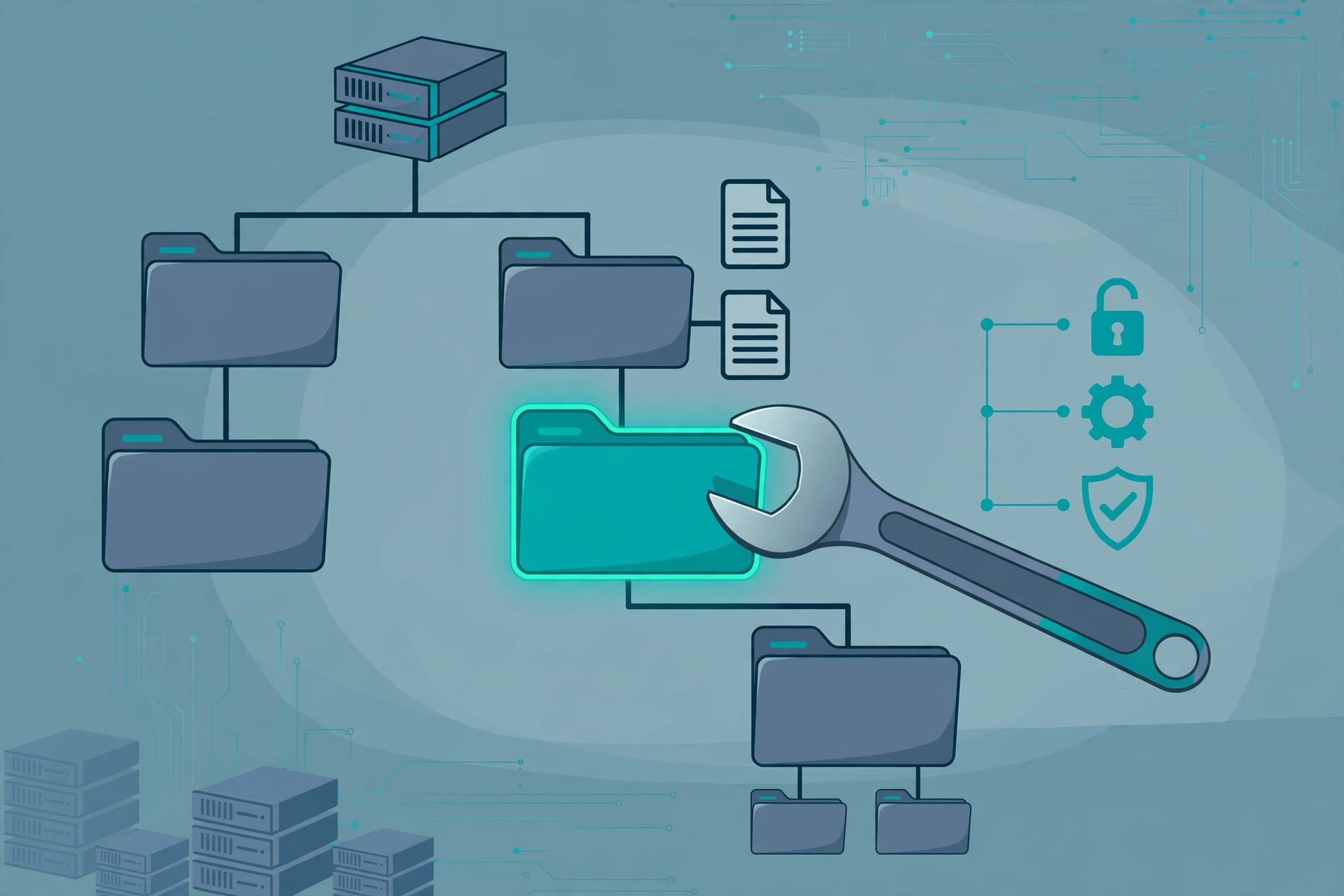
- Set correct folder permissions (755). Connect via FTP (FileZilla) or your hosting File Manager. Right-click the
wp-contentfolder (andwp-admin,wp-includes) → File Permissions → numeric value 755 (Owner: read/write/execute; Group and Public: read/execute) → tick “Recurse into subdirectories” → apply to directories only. Then retry the installation. - Set correct file permissions (644). Repeat the process on files: numeric value 644, applied to files only. And set
wp-config.phpto 600 for extra security. Never use 777 — it “fixes” the error by exposing your site to everyone. - Fix ownership if permissions don’t help. If 755/644 still fails, files are likely owned by the wrong user. On a VPS with SSH access, run
sudo chown -R www-data:www-data /path/to/wordpress/(replacewww-datawith your web-server user). On shared hosting, ask your host to reset file ownership. - Add FS_METHOD direct to wp-config.php. If WordPress keeps prompting for FTP credentials or silently failing, add
define('FS_METHOD', 'direct');towp-config.phpjust above the “stop editing” line. This lets WordPress write files directly without the FTP layer. (On localhost stacks like XAMPP, also restart Apache after permission changes.) - Check disk space. Open your hosting panel and check disk usage — if you’re at 100%, free up space (delete old backups, unused media, stale logs) or ask your host to raise the quota. A full disk produces exactly this error. Browse KamiWeb’s plugin resources for backup and cleanup tools.
- Check the related “unable to create directory” upload error. If the same message appears when uploading images — “Unable to create directory wp-content/uploads/2026/10. Is its parent directory writable by the server?” — the fix is identical: ensure
wp-content/uploadsexists and is writable (755, correct ownership). Sometimes theuploadsfolder is simply missing after a migration; create it manually with the right permissions. - Rule out security-plugin locks. If permissions are correct but installs still fail, temporarily deactivate your security plugin — some lockdown features block all file writes, including legitimate ones. If the install then succeeds, re-enable the plugin and whitelist WordPress’s installer paths instead of leaving protection off.
Conclusion
The could not create directory WordPress fix is almost always about permissions: set folders to 755, files to 644, fix ownership if needed, enable direct file writes with FS_METHOD, and rule out a full disk. Verify everything reads “Writable” in Site Health afterward, and installs and updates will flow again. More WordPress fixes at KamiWeb.