

PageSpeed Insights shows a red “Core Web Vitals assessment: Failed” — or Search Console lists whole URL groups as Poor. The Core Web Vitals assessment failed fix is a process, not a single tweak: the assessment is all-or-nothing, based on 28 days of real-user data, and one failing metric fails the whole page. This 2026 guide gives you the exact diagnostic sequence to find which metric fails, fix the template behind it, and get the assessment to pass.
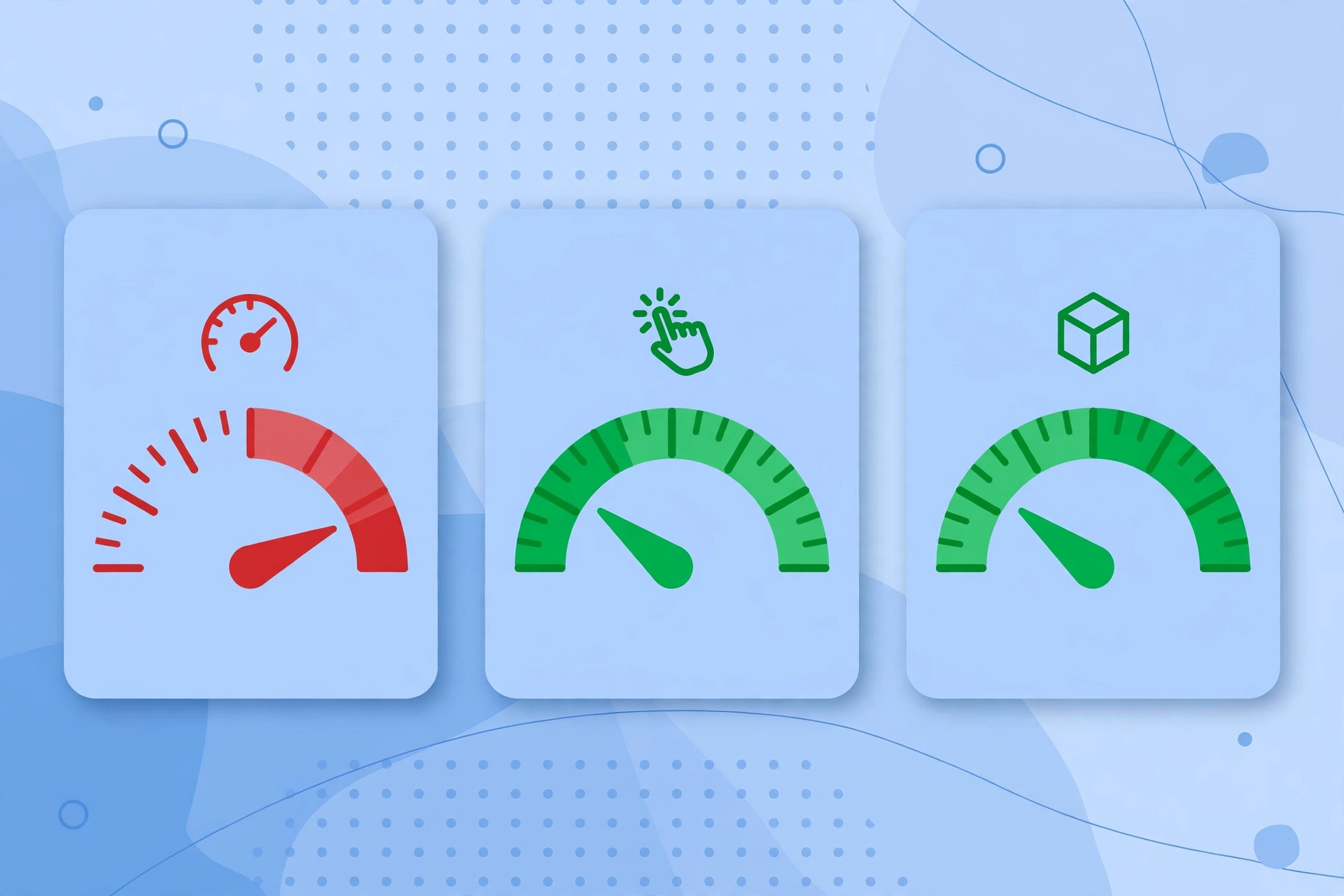
First, understand what the assessment actually is. It checks three metrics — LCP (loading, ≤2.5s), INP (responsiveness, ≤200ms), CLS (stability, ≤0.1) — at the 75th percentile of real Chrome visits over a rolling 28-day window (CrUX field data). If any one metric is Poor, the page fails, even if the other two are green. A 95 Lighthouse score can sit next to a failed assessment, because Lighthouse is a single simulated lab run while the assessment reflects your actual visitors on real devices and networks.
Why the Core Web Vitals Assessment Fails
- One metric in the Poor range: usually LCP on mobile (slow hero image) or INP (third-party scripts) — the assessment fails on the worst metric.
- Template-level problems: Search Console groups similar URLs; one slow template fails hundreds of pages at once.
- Mobile field data vs desktop lab tests: you test on a fast desktop, your visitors are on mid-range Android phones.
- Third-party scripts: chat widgets, ad tags, and tag managers injected after your last audit.
- Recent regressions: a new plugin, hero video, or marketing tag undid months of optimisation overnight.
- Thin traffic: pages with few visits get noisy field data; the assessment needs enough real visits to be stable.
How to Fix a Failed Core Web Vitals Assessment: 8 Steps
Step 1: Identify the failing metric and URL group
Open Search Console → Experience → Core Web Vitals and click the failing issue (mobile first — it fails far more often). Note which metric is Poor and open the URL group. This tells you whether you are fixing images (LCP), JavaScript (INP), or layout (CLS) — and on which template.
Step 2: Run PageSpeed Insights on a representative URL
Take one example URL from the group and run it through PageSpeed Insights. Read the field data section at the top (that is the assessment data), then use the lab Diagnostics below to find causes. Work the Opportunities in order of estimated time savings.
Step 3: Fix LCP if it fails
Optimise and preload the hero image (WebP/AVIF, under 200 KB, fetchpriority="high", never lazy-loaded), cut server response time with full-page caching, and remove render-blocking CSS/JS. Our LCP issue fix walks through the full checklist.
Step 4: Fix INP if it fails
Break up long JavaScript tasks over 50 ms with scheduler.yield(), audit and defer third-party scripts, and slim down event handlers. INP is the most common failure in 2026 — see our INP issue fix for the deep dive.
Step 5: Fix CLS if it fails
Set width and height on all images and videos, reserve fixed space for ads and embeds, fix web-font shifts with font-display: swap and matched fallbacks, and animate with transforms only. Details in our CLS issue fix.
Step 6: Fix the template, not the URL
Apply the fix in your theme or page-builder template so every URL in the group benefits at once. One hero-image fix or one script removal can clear hundreds of URLs. Verify on 2–3 different URLs from the group before moving on.
Step 7: Deploy and confirm in the lab
Purge every cache (plugin, CDN, browser), then re-run PageSpeed Insights 2–3 times and take the median. Lab scores update immediately — a green lab result confirms your change worked, even though the assessment itself has not moved yet.
Step 8: Validate and wait for field data
Click Validate fix in Search Console for the URL group. The assessment updates as the 28-day CrUX window rolls forward — expect 4 to 8 weeks before Search Console shows a pass. Do not re-test daily; check weekly and watch the trend line move.
How to Prevent Future Assessment Failures
Make Core Web Vitals part of your deploy pipeline: performance budgets for image sizes and script counts, a PageSpeed check before major theme or plugin changes, and monthly reviews of the Search Console report. New marketing tags and plugins are the top regression source — gate them behind a speed review. Track real-user data continuously with a free site speed monitor rather than relying on occasional lab runs.
Conclusion
A failed Core Web Vitals assessment means one metric is Poor for real users: find which one, fix the template behind the URL group, confirm in the lab, and give the 28-day field window time to catch up. It is a process, not a panic — work it in order and the assessment turns green. For more field-data wins, follow the KamiWeb blog.