
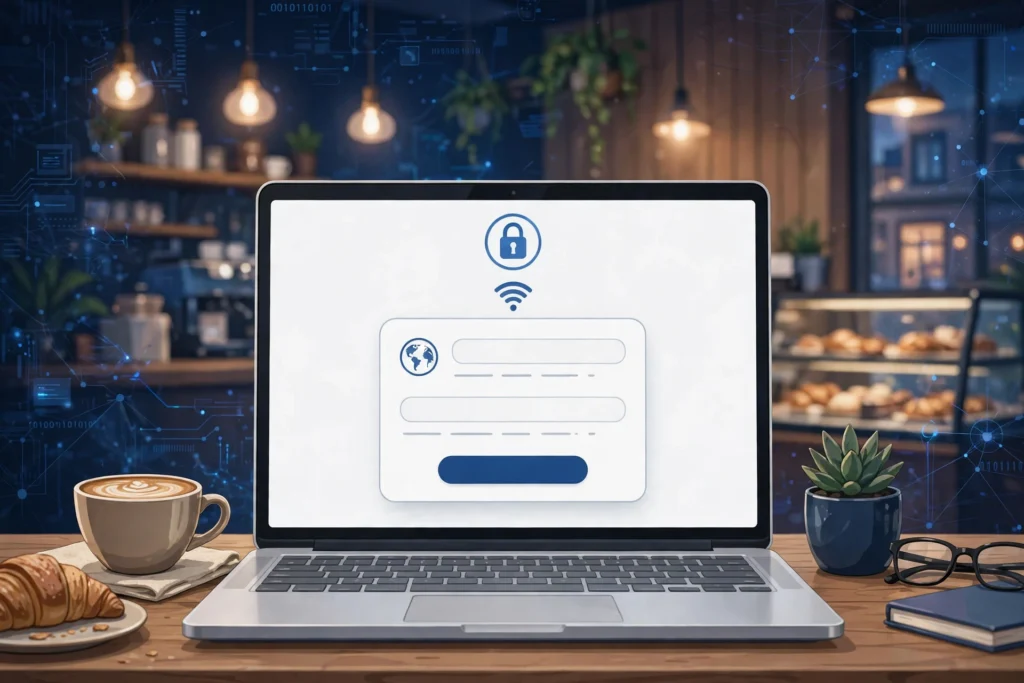
You connect to the hotel WiFi, open your browser, and instead of the website you get 511 Network Authentication Required. A 511 network authentication required fix is refreshingly simple once you understand what is happening: this is not a broken website — it is the network itself telling you to log in before it lets you through. This 2026 guide explains the 511 status and the exact steps to get online.
Here is what 511 means. Defined in RFC 6585, the 511 status code is returned by an intercepting proxy — typically a captive portal on public WiFi — when the client needs to authenticate to gain network access. Your request never reached the website at all; the network intercepted it and replied “log in first.” Coffee shops, airports, hotels, and corporate guest networks all use captive portals, which is why 511 almost always appears on unfamiliar networks rather than your home connection.
What Causes the 511 Error
- Captive portals: public WiFi requiring login, terms acceptance, or payment before granting internet access.
- Expired portal session: you authenticated hours ago and the session timed out, so new requests get 511 again.
- VPN or custom DNS interference: VPNs and third-party DNS can block or bypass the captive portal’s interception.
- Stale cache or cookies: old portal session data confusing the re-authentication flow.
- HTTPS-only browsing: the portal cannot intercept HTTPS cleanly, so the login page never appears.
- Corporate proxies: workplace proxies requiring authentication for external access.
How to Fix 511 Network Authentication Required: 7 Steps
Step 1: Open a plain HTTP site
Captive portals intercept plain HTTP far more reliably than HTTPS. Open a new tab and visit http://example.com (deliberately not HTTPS). This usually triggers the portal’s login page immediately.
Step 2: Complete the portal login
Follow the portal’s steps — enter the WiFi password, accept the terms, or complete payment. Once authenticated, your original page should load. If the portal page itself will not appear, move to the next steps.
Step 3: Disconnect and reconnect to the network
Forget the WiFi network on your device and rejoin it. Reconnecting forces the operating system to re-detect the captive portal, which pops the login page up again on most devices.
Step 4: Disable VPN and custom DNS temporarily
Turn off your VPN and switch DNS back to automatic. VPNs tunnel past the portal’s interception and custom DNS (like 1.1.1.1) can prevent the portal redirect from resolving. Re-enable them after you are authenticated.
Step 5: Clear browser cache and cookies
Stale portal cookies can trap you in a 511 loop. Clear cookies and cached data for the portal domain (or all browsing data), then revisit the plain HTTP site from Step 1.
Step 6: Restart your device’s network stack
Toggle airplane mode on and off, or restart the device. This clears stuck network state and forces a fresh DHCP and portal-detection cycle.
Step 7: Check for MAC randomisation issues
Some portals bind authentication to your device’s MAC address. If your phone or laptop randomises its MAC per network, the portal may not recognise the returning device. Temporarily disable MAC randomisation for that network in your WiFi settings.
For Network Admins: Serving 511 Correctly
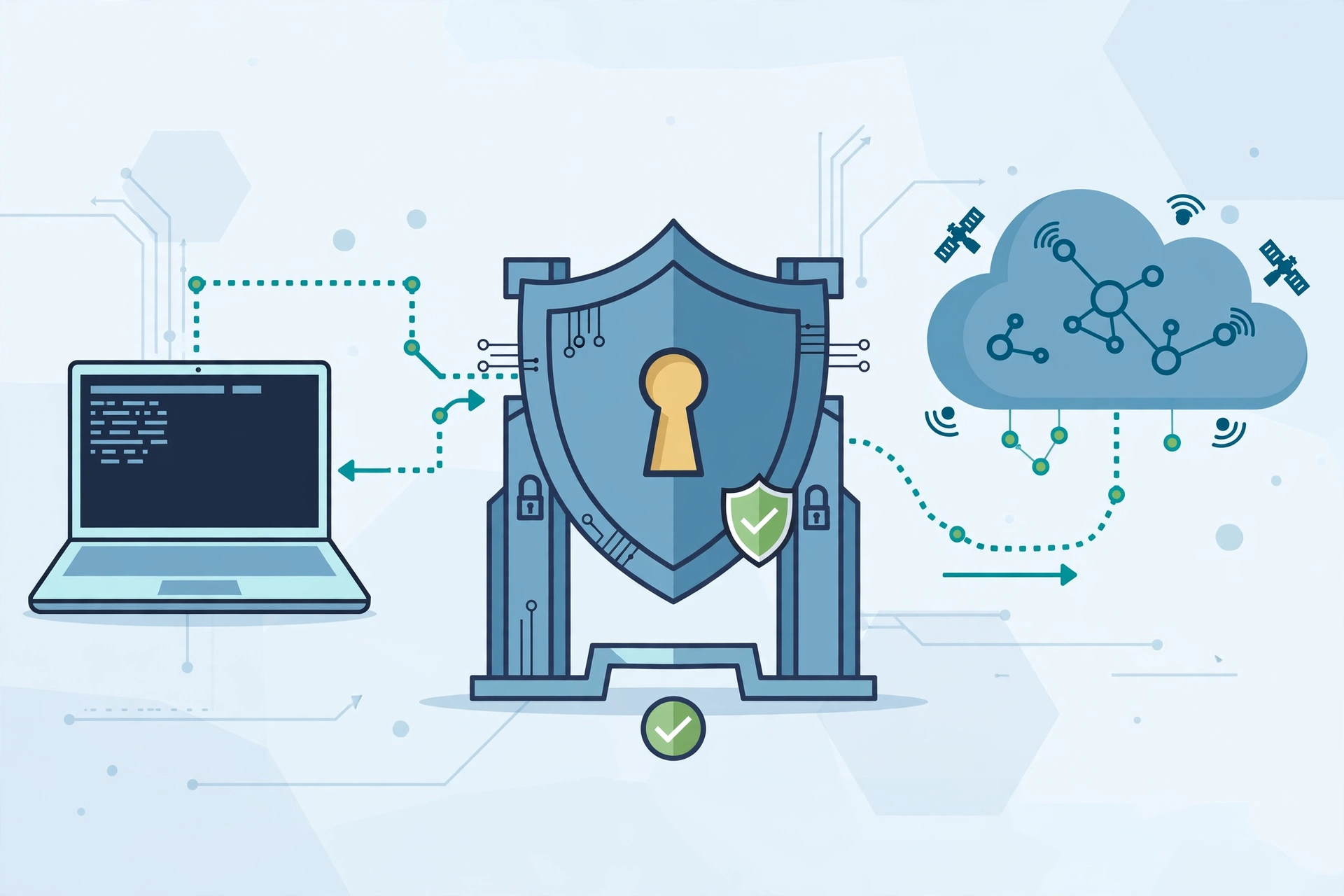
If you run the network, the 511 response should include a link or meta refresh pointing users at the login page — RFC 6585 explicitly recommends it. Do not misuse 401 or 403 for portal authentication; 511 exists precisely so clients can distinguish “authenticate to the network” from “authenticate to the site.” Whitelist the portal and DNS endpoints so unauthenticated clients can actually reach the login flow, and test the flow on all major operating systems, whose captive-portal detection behaves differently.
Conclusion
A 511 error is never your website’s fault — it is the local network asking for credentials before it lets traffic through. Open a plain HTTP page, complete the captive portal login, and temporarily disable VPN or custom DNS if the portal will not appear. Once authenticated, the error vanishes. For more network errors decoded in plain language, browse the KamiWeb blog or run a check with our free network tools.