
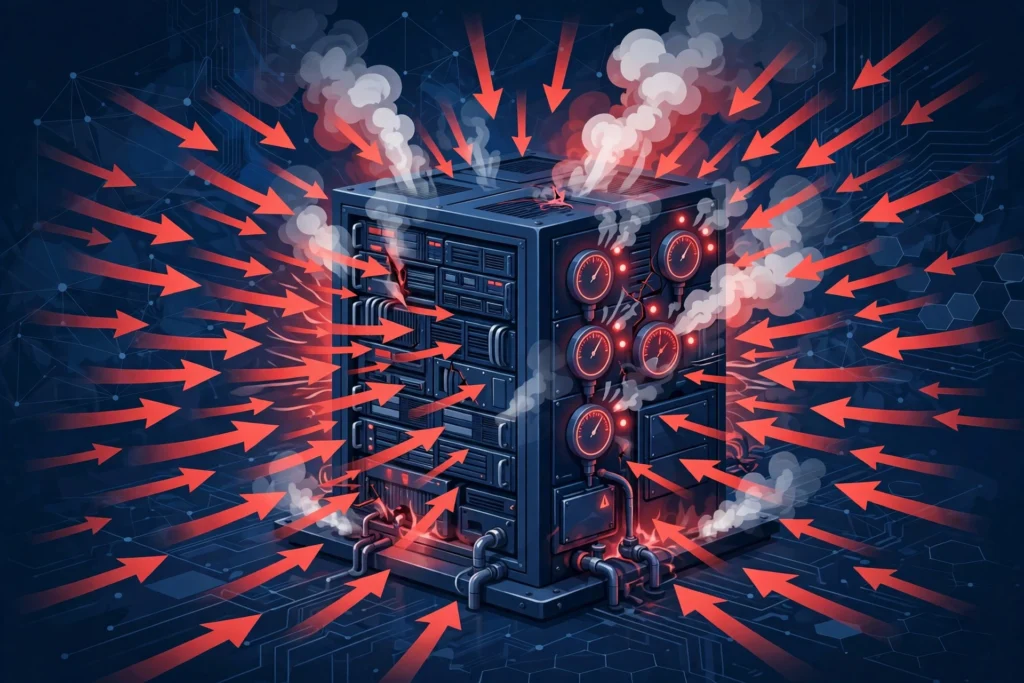
A 503 Service Unavailable error means your server is temporarily unable to handle the request — it is up, but too overwhelmed (or too broken at the moment) to serve your WordPress site. Unlike a 500, which means something crashed, a 503 usually means resources ran out: CPU, memory, or PHP workers are all consumed. The 503 service unavailable WordPress fix is about reducing load, freeing resources, and sometimes admitting your hosting plan is too small. This 2026 guide gives you eight proven fixes.
What Causes the 503 Service Unavailable Error in WordPress?
The server is essentially saying “I can’t deal with you right now.” The most common causes are:
- Server resource exhaustion: The number-one cause. CPU, RAM, or disk full — from a traffic spike, a heavy plugin, or a runaway cron job. Shared hosting plans hit these walls first.
- PHP-FPM worker pool exhaustion: All PHP workers are busy or stuck, so new requests get rejected with a 503 (on Nginx, this is the classic upstream-unavailable case).
- A plugin hogging resources: Backup plugins, security scanners, and statistics plugins can consume enormous resources during their runs — often exactly when you notice the 503.
- DDoS attack or bot flood: Malicious or aggressive bot traffic can saturate a small server in minutes.
- WordPress Heartbeat API overload: The admin-ajax heartbeat fires constantly on edit screens; with many logged-in users it can swamp a small server.
- Database overload: Slow queries, huge wp_options tables (autoload bloat), or a crashed MySQL making PHP hang.
- Server maintenance: Your host may be doing maintenance — in which case the 503 is temporary and intentional.
How to Fix the 503 Service Unavailable Error in WordPress
First, wait 5 minutes and reload — if your host is doing maintenance or a backup just finished, the 503 may already be gone. If it persists, work through these:
- Deactivate heavy plugins. Rename
wp-content/pluginstoplugins.deactivatedvia FTP. If the site returns, a plugin is the resource hog — reactivate one by one, watching for backup, security-scan, and statistics plugins. Replace the offender with a leaner option from our free WordPress plugins collection. - Check resource usage in your hosting panel. Look at CPU, memory, and disk graphs. If disk is full, delete old backups, clear cache folders, and remove unused media. If CPU/RAM are pegged, identify the timing — does it match a backup schedule or traffic spike? More server-tuning guides are on the KamiWeb blog.
- Enable caching. A good page-cache plugin (or your host’s built-in cache) serves static HTML instead of running PHP + MySQL for every visitor — the single biggest load reduction you can make. Also enable object caching if your host offers Redis/Memcached.

- Limit the Heartbeat API. Install a heartbeat-control plugin and slow the heartbeat on the dashboard and frontend (or disable it where you do not need it). This alone can rescue small servers with several editors logged in.
- Increase the PHP memory limit. Add
define('WP_MEMORY_LIMIT', '256M');towp-config.phpabove the “stop editing” line, and raisememory_limitin your hosting panel. This helps when the 503 comes from PHP hitting a memory wall. - Block bad bots and enable a CDN. Check access logs for aggressive crawlers and block them (robots.txt, rate limiting, or Cloudflare bot rules). A CDN like Cloudflare absorbs traffic spikes and serves cached pages without touching your origin server.
- Temporarily disable the CDN. Paradoxically, sometimes the CDN is the problem — a misconfigured edge rule or a data-center issue. Pause Cloudflare briefly; if the site loads, the issue is at the CDN layer, not your server.
- Upgrade your hosting. If 503s recur under normal traffic, your site has outgrown its plan — this is the honest long-term fix. Move from cramped shared hosting to a VPS or managed WordPress host with real headroom. Before upgrading, keep handy utilities nearby via the KamiWeb free tools.
Conclusion
The 503 Service Unavailable error is your server waving a white flag: cut the load with caching and plugin audits, free up resources, block bad bots, and upgrade hosting when you have genuinely outgrown it. Monitor resource graphs after every fix so you catch the next spike before visitors do. For more free resources, start at the KamiWeb homepage.